> ## Documentation Index
> Fetch the complete documentation index at: https://docs.usesuperflow.com/llms.txt
> Use this file to discover all available pages before exploring further.
# Setup
> How to setup Superflow with Webflow
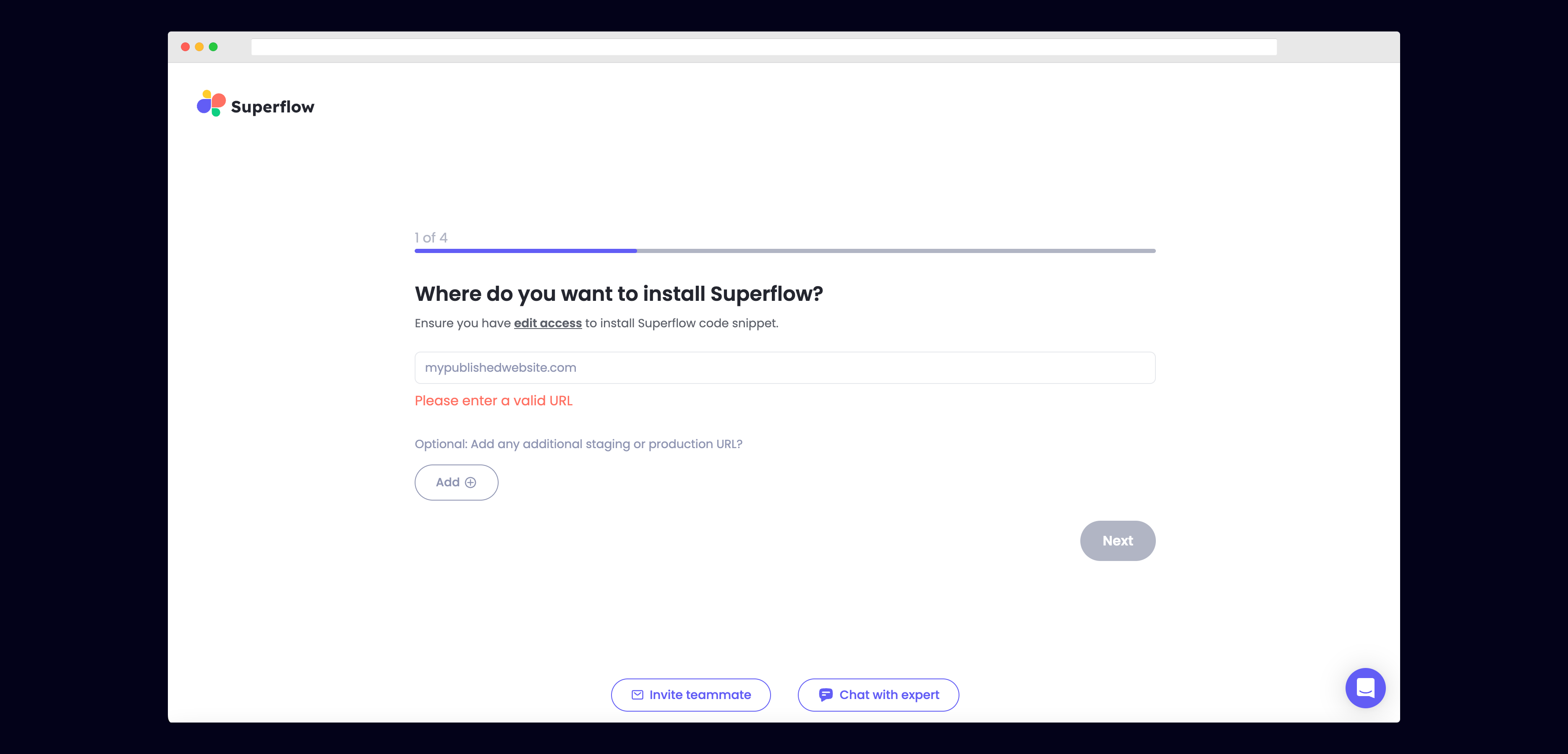
## 1) Enter Your Site URL
Enter the site URL you want Superflow to be installed in.
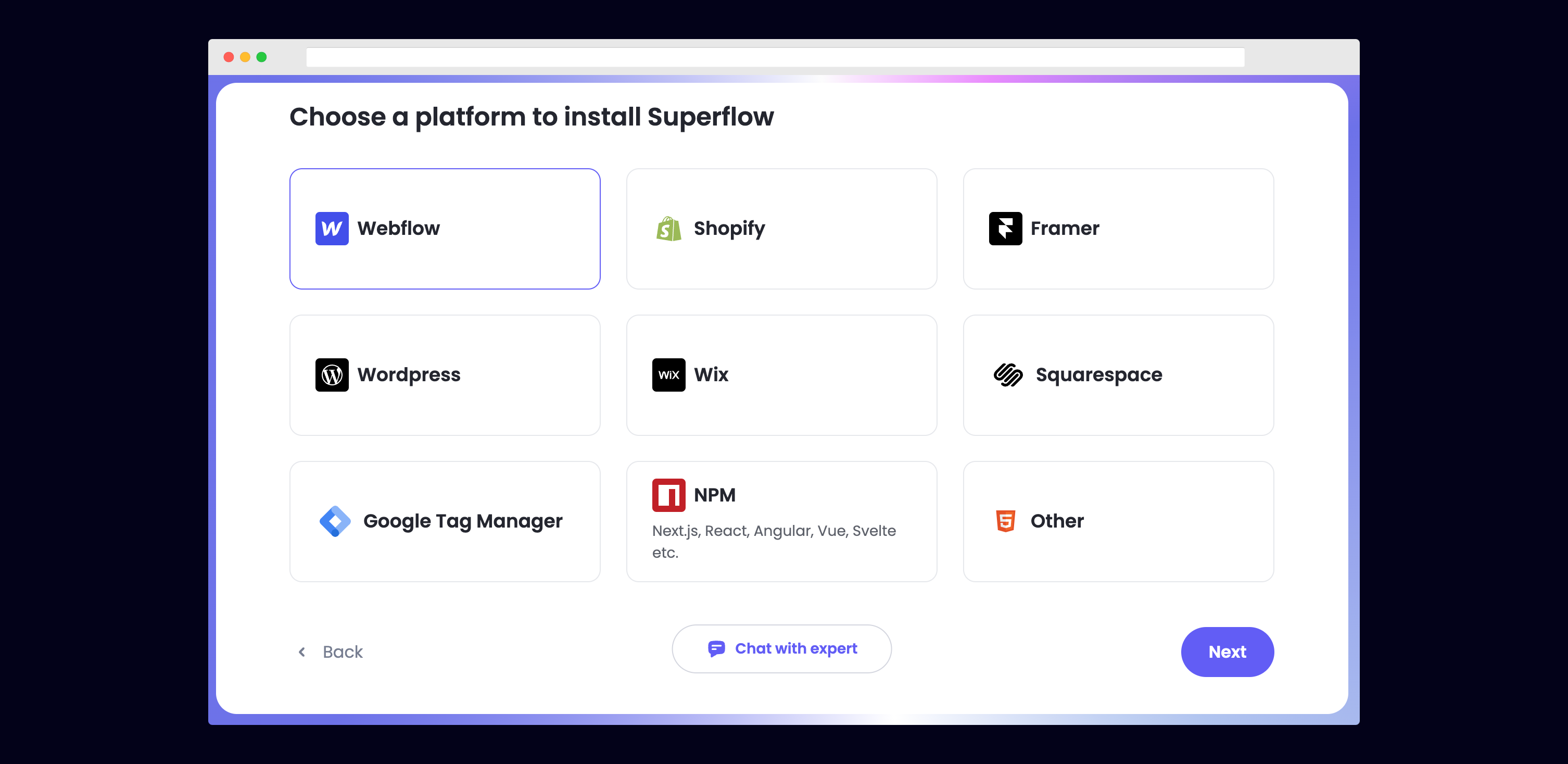
 ## 2) Select Webflow from the list of Platforms
Choose Webflow from the list of options to install Superflow with Webflow.
## 2) Select Webflow from the list of Platforms
Choose Webflow from the list of options to install Superflow with Webflow.
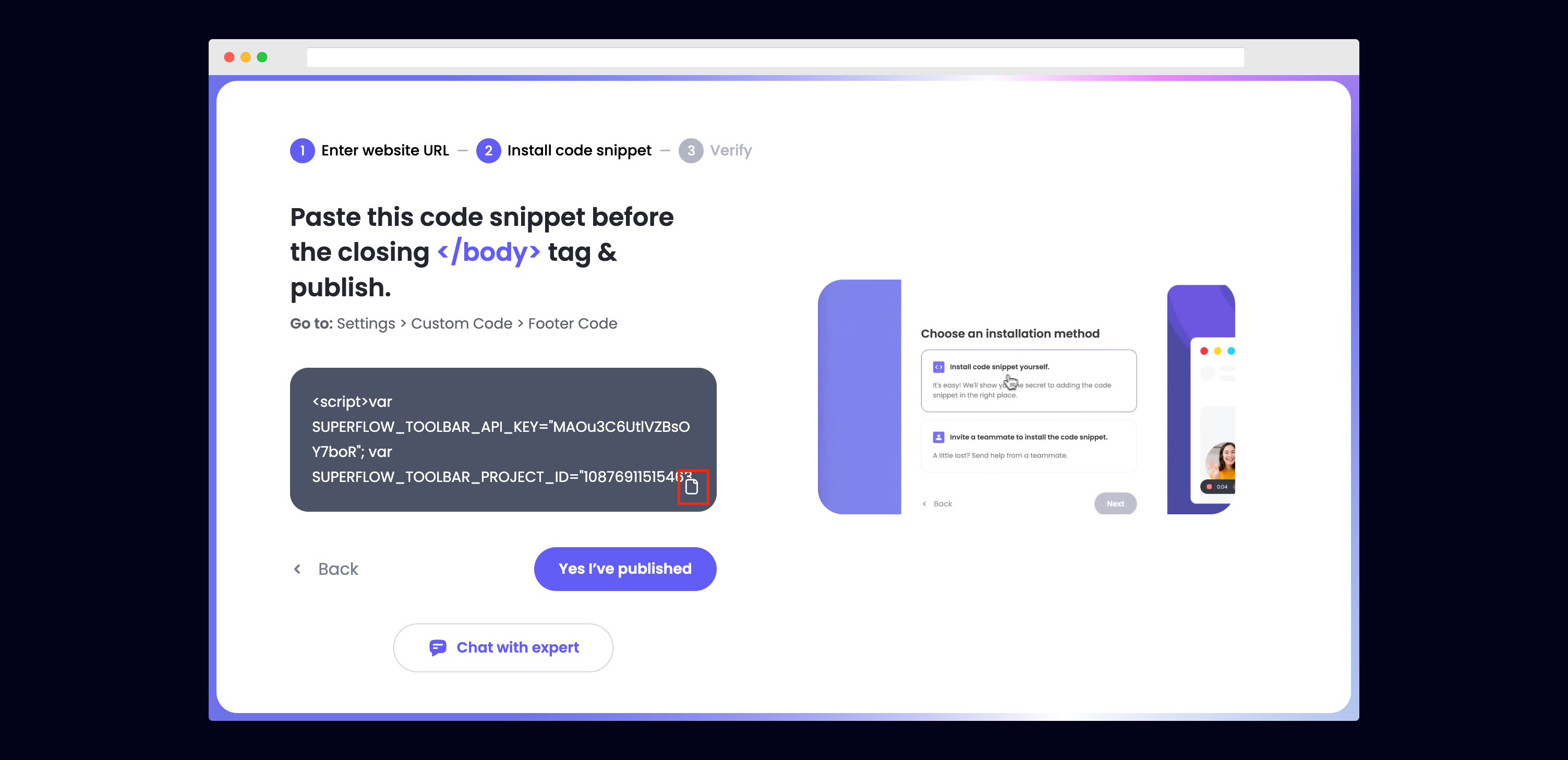
 ## 3) Copy your unique Superflow code
You can copy your unique Superflow code from the onboarding flow or from your project settings in your dashboard.
## 3) Copy your unique Superflow code
You can copy your unique Superflow code from the onboarding flow or from your project settings in your dashboard.
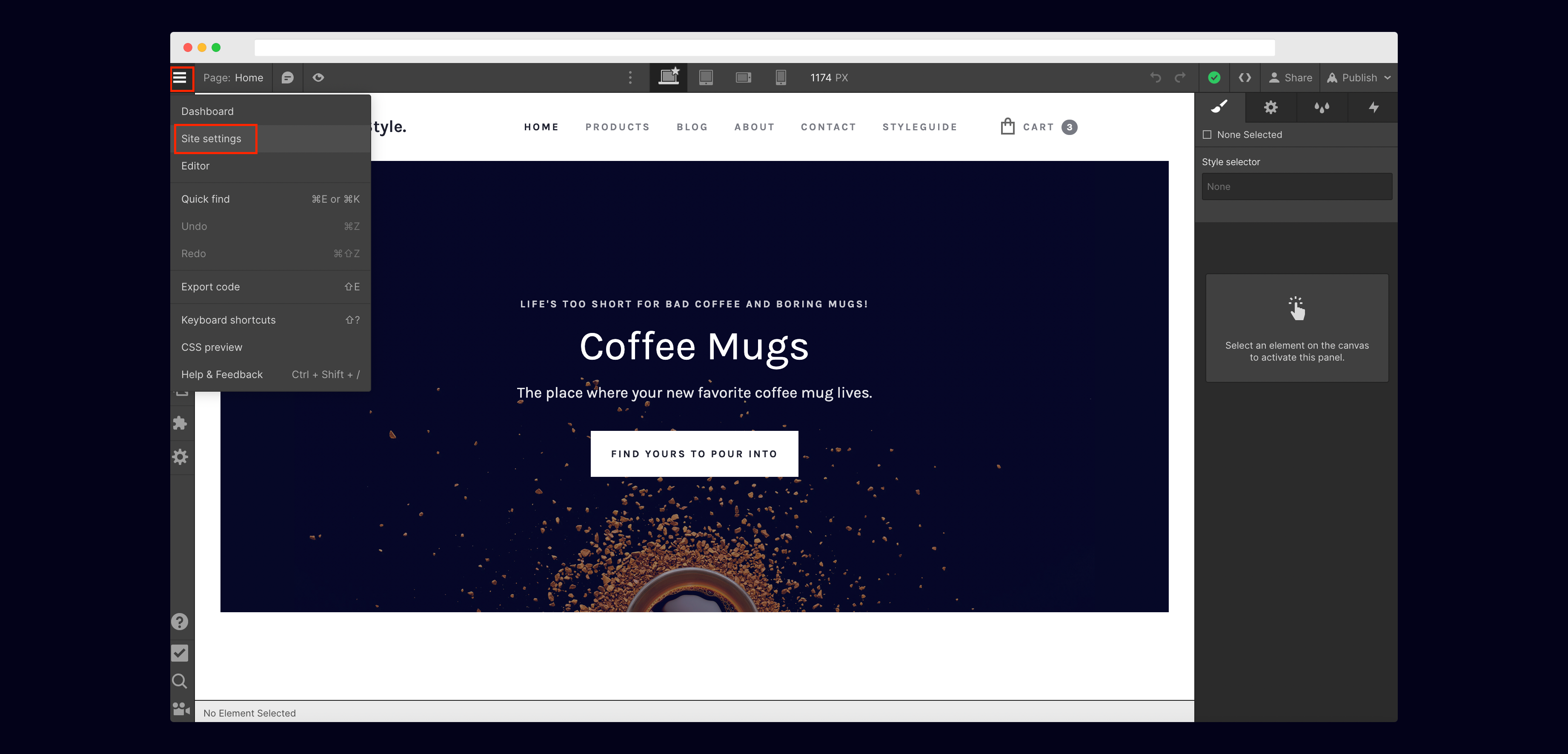
 ## 4) Go to Site Settings on your Webflow Site
You can get to Site Settings by clicking the dropdown menu in the top left.
## 4) Go to Site Settings on your Webflow Site
You can get to Site Settings by clicking the dropdown menu in the top left.
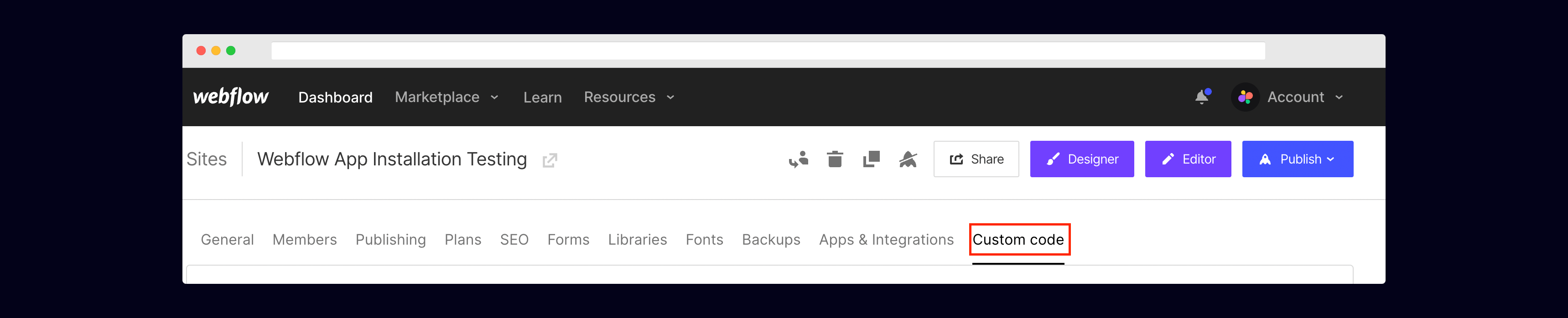
 ## 5) Go to Custom Code
Click on the Custom Code tab.
## 5) Go to Custom Code
Click on the Custom Code tab.
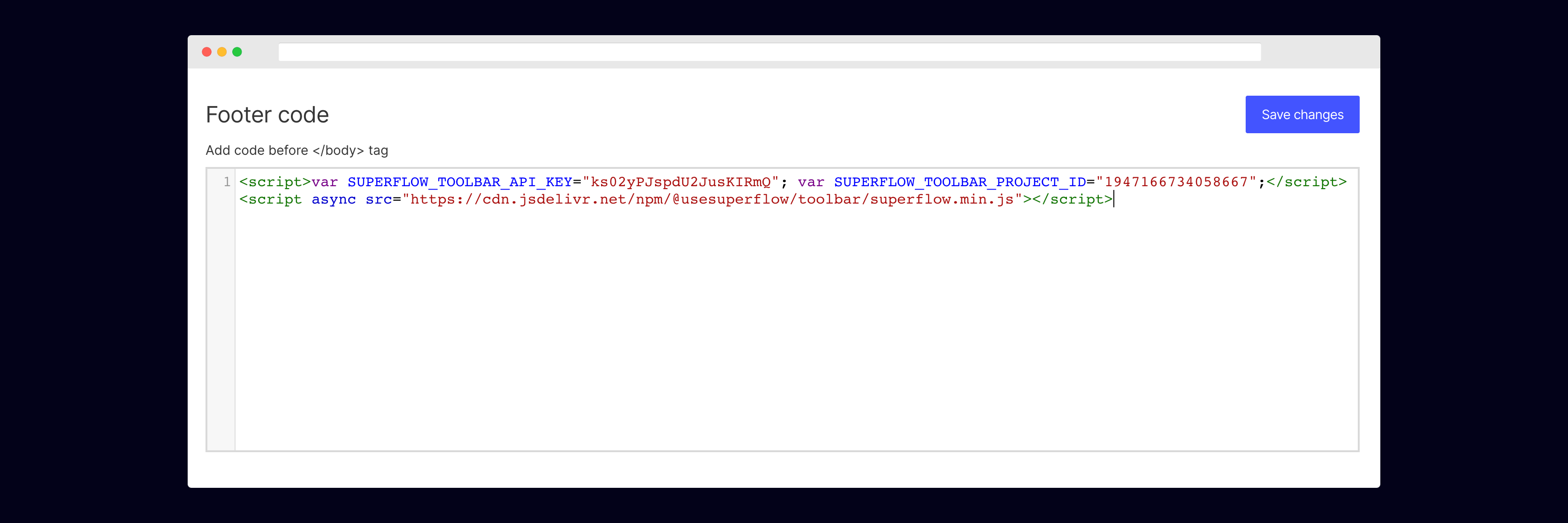
 ## 6) Add your unique Superflow code in the Footer section
Scroll down and add your unique Superflow code in the Footer Code section. Be sure to save.
## 6) Add your unique Superflow code in the Footer section
Scroll down and add your unique Superflow code in the Footer Code section. Be sure to save.
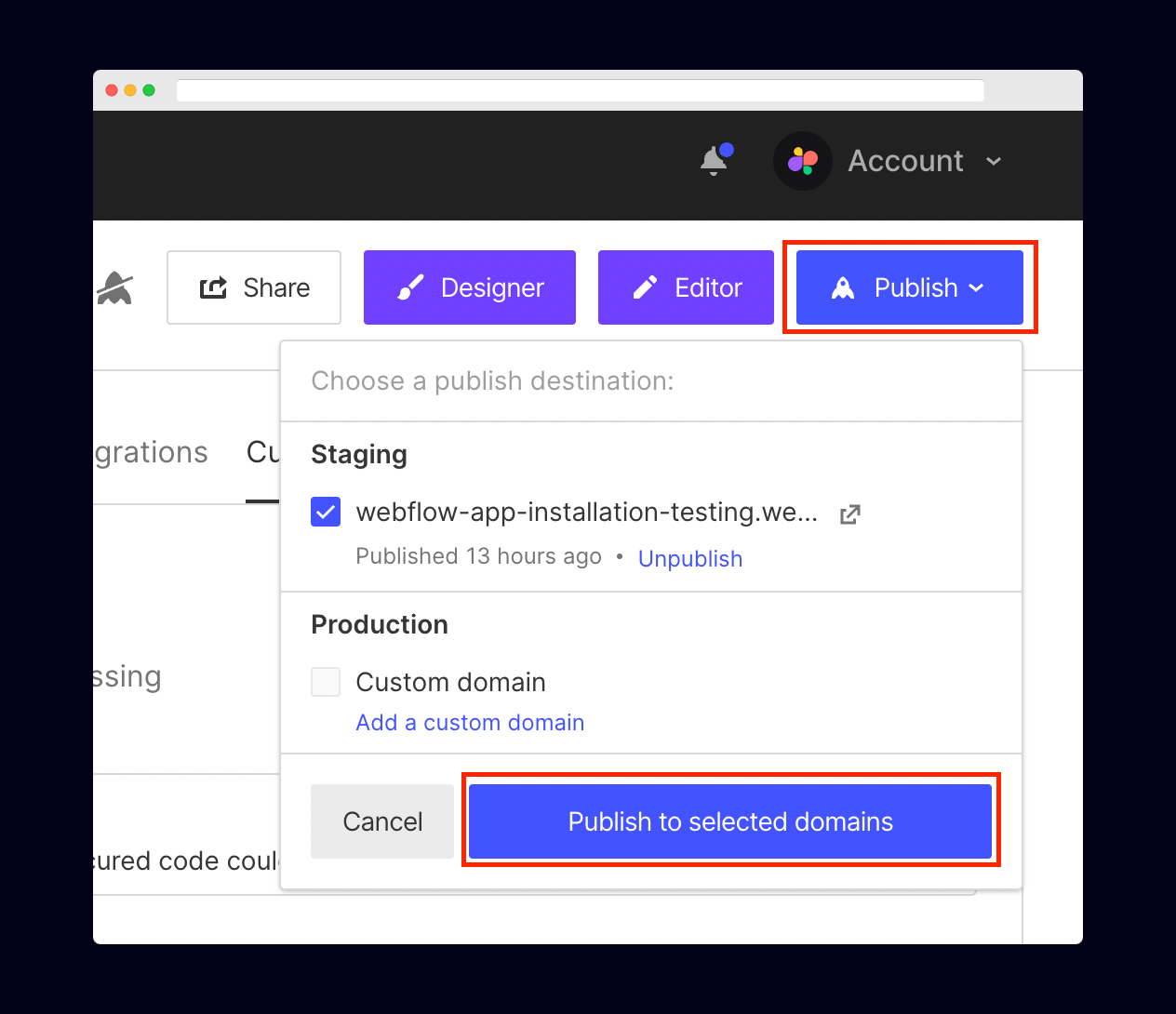
 ## 7) Publish your Webflow site
Click the publish button in the top right to publish your Webflow site.
## 7) Publish your Webflow site
Click the publish button in the top right to publish your Webflow site.
 ## 8) Verify your Installation
Verify your Superflow installation by clicking the Verify button on the onboarding flow.
## 8) Verify your Installation
Verify your Superflow installation by clicking the Verify button on the onboarding flow.
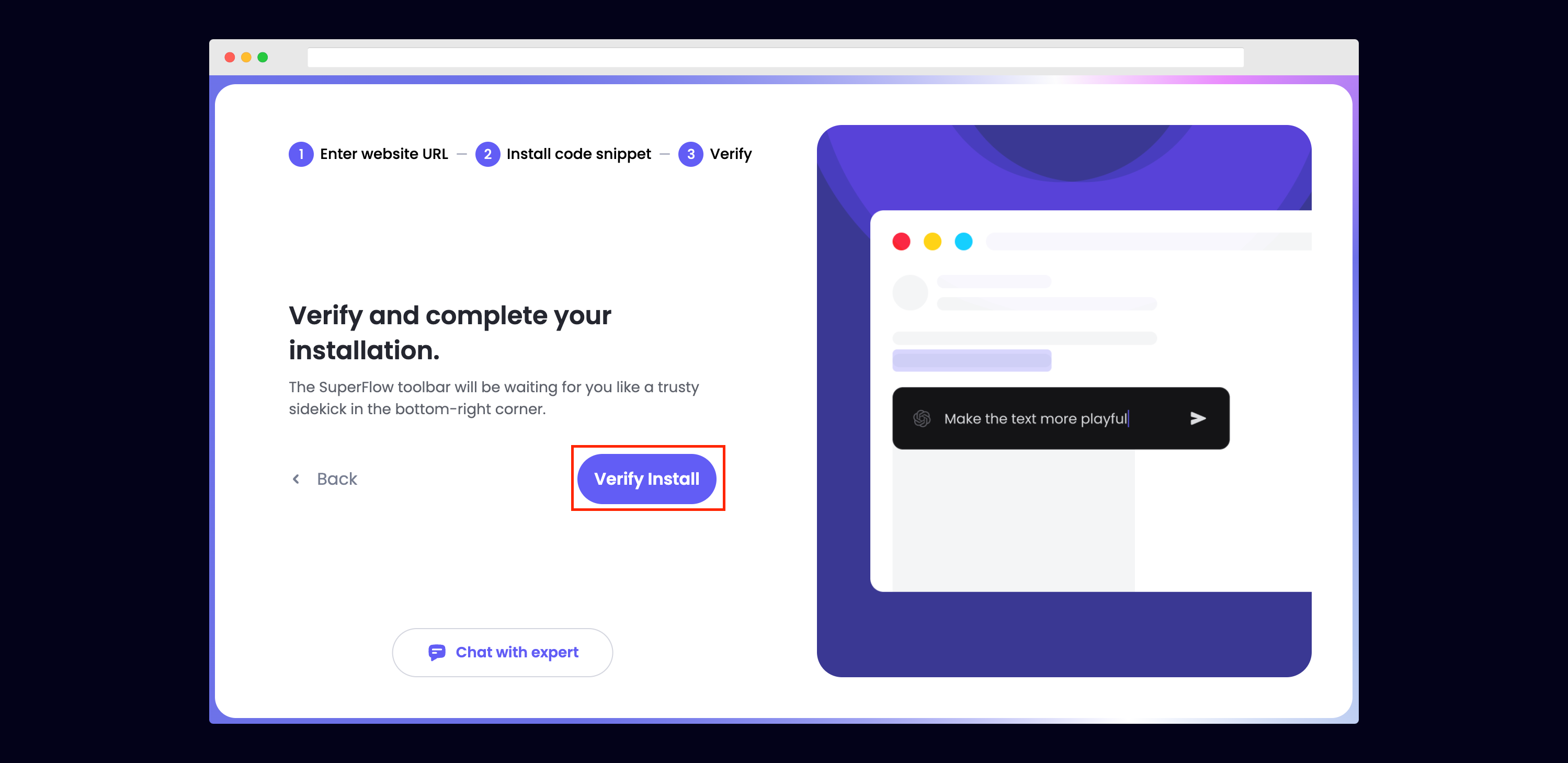 If successful, you should be redirected to your published webflow site and see the following success message:
 ## 9) Troubleshooting
Having trouble getting your verifying your installation? Here are the common mistakes users encounter when installing Superflow:
* Did you forget to save the Custom Code?
* Did you forget to publish your site?
* Is the browser still loading a cached version?
* Did you add `?review=true` at the end of your url?
* Did you publish your changes on a staging URL while you are trying to access a Prod URL?
* Did you accidentally install multiple Superflow scripts in the Custom Code?
## 10) Navigate to your Webflow site
Now that you have verified that Superflow has been installed on your Webflow site, navigate to your published site and add `?review=true` at the end of the URL to enable Superflow.
`Example: mywebsite.webflow.com/?review=true`
## 11) Test out Superflow
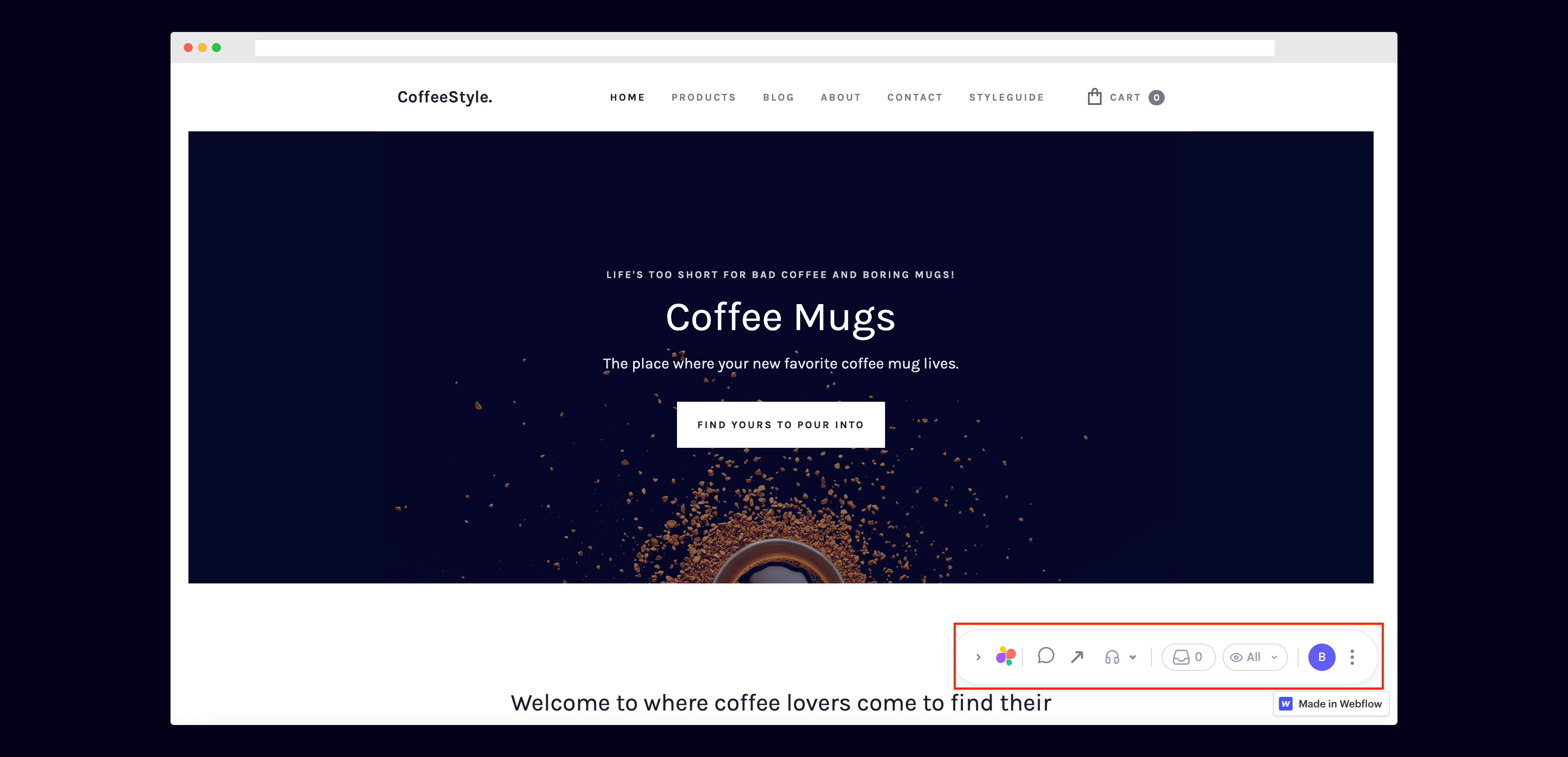
You should now see a Superflow toolbar on the bottom right of you screen.
## 9) Troubleshooting
Having trouble getting your verifying your installation? Here are the common mistakes users encounter when installing Superflow:
* Did you forget to save the Custom Code?
* Did you forget to publish your site?
* Is the browser still loading a cached version?
* Did you add `?review=true` at the end of your url?
* Did you publish your changes on a staging URL while you are trying to access a Prod URL?
* Did you accidentally install multiple Superflow scripts in the Custom Code?
## 10) Navigate to your Webflow site
Now that you have verified that Superflow has been installed on your Webflow site, navigate to your published site and add `?review=true` at the end of the URL to enable Superflow.
`Example: mywebsite.webflow.com/?review=true`
## 11) Test out Superflow
You should now see a Superflow toolbar on the bottom right of you screen.
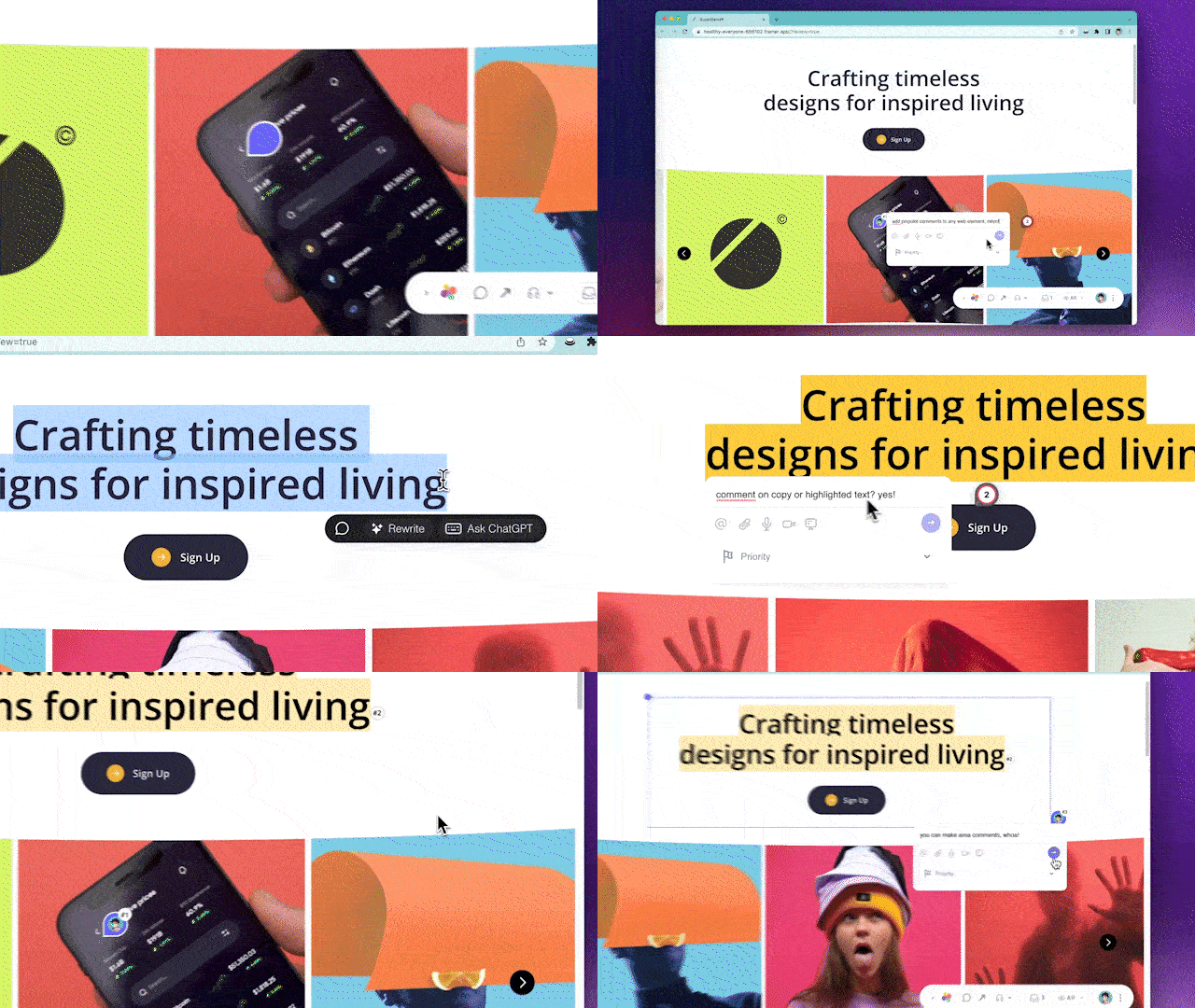
 ## 12) Dropping your first comment
Try leaving a comment on your page.
You can leave a comment in several different ways:
* By highlighting any text
* By hovering over any element on the page
* By drawing a box anywhere on the page
You can also leave voice and screen recordings in your comments as well!
## 12) Dropping your first comment
Try leaving a comment on your page.
You can leave a comment in several different ways:
* By highlighting any text
* By hovering over any element on the page
* By drawing a box anywhere on the page
You can also leave voice and screen recordings in your comments as well!