> ## Documentation Index
> Fetch the complete documentation index at: https://docs.usesuperflow.com/llms.txt
> Use this file to discover all available pages before exploring further.
# Setup
> How to setup Superflow with Google Tag Manager
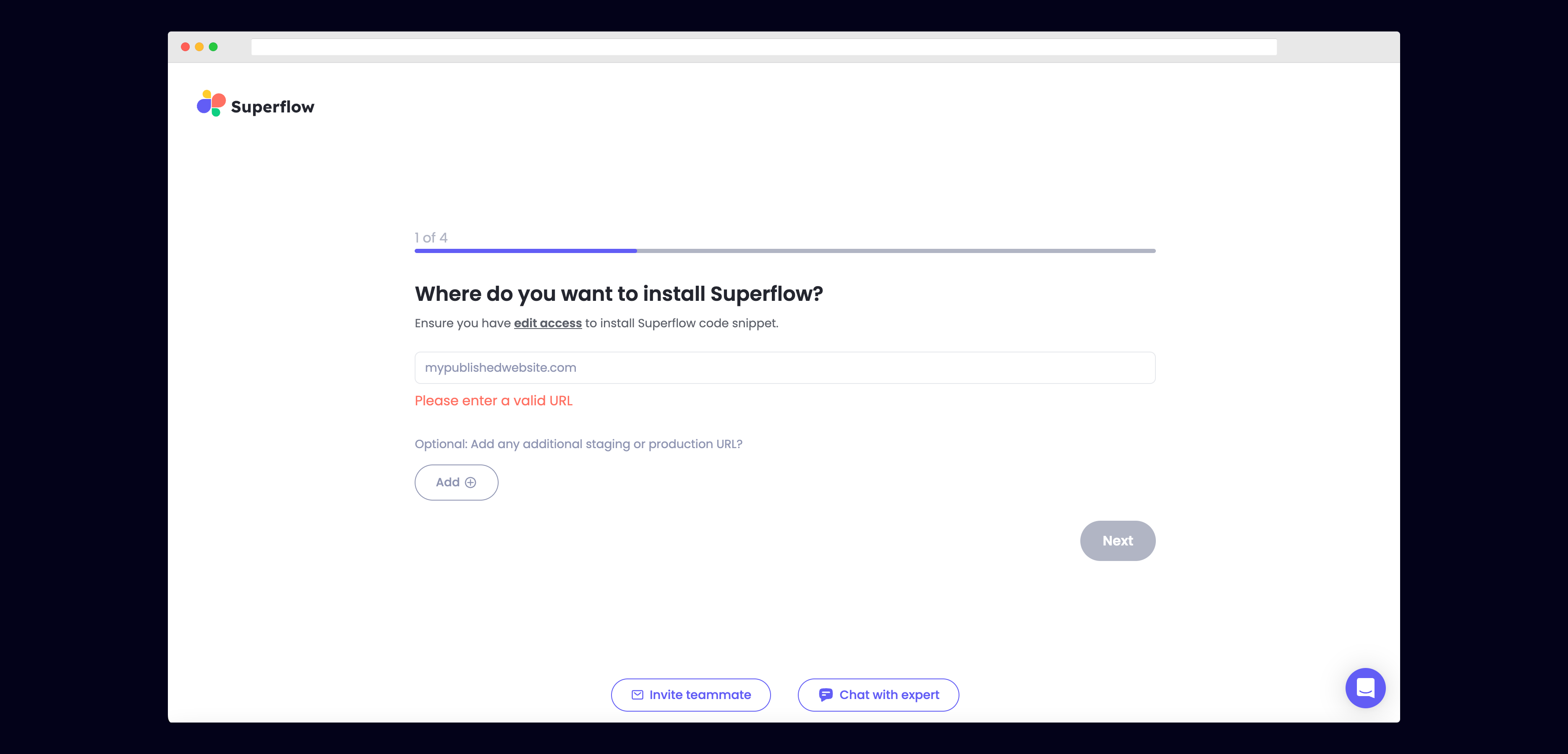
## 1) Enter Your Site URL
Enter the site URL you want Superflow to be installed in.
 ## 2) Set Up with Google Tag Manager
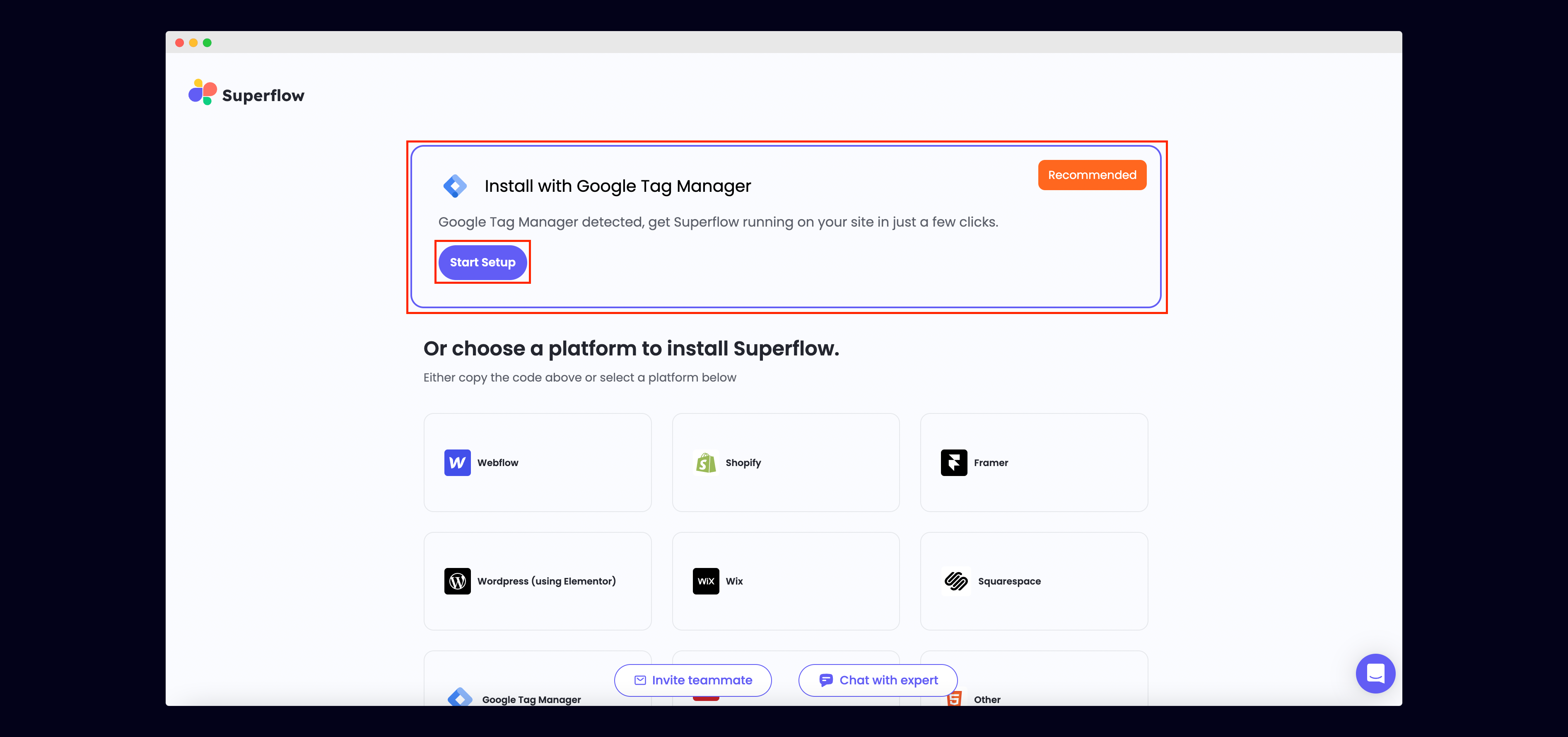
If Google Tag Manager is detected with the site URL you entered, you will see a banner at the top recommending that you install with Google Tag Manager.
Click Start Setup inside the banner to install Superflow with Google Tag Manager.
## 2) Set Up with Google Tag Manager
If Google Tag Manager is detected with the site URL you entered, you will see a banner at the top recommending that you install with Google Tag Manager.
Click Start Setup inside the banner to install Superflow with Google Tag Manager.
 ## 3) Authenticate with your Google Tag Manager account
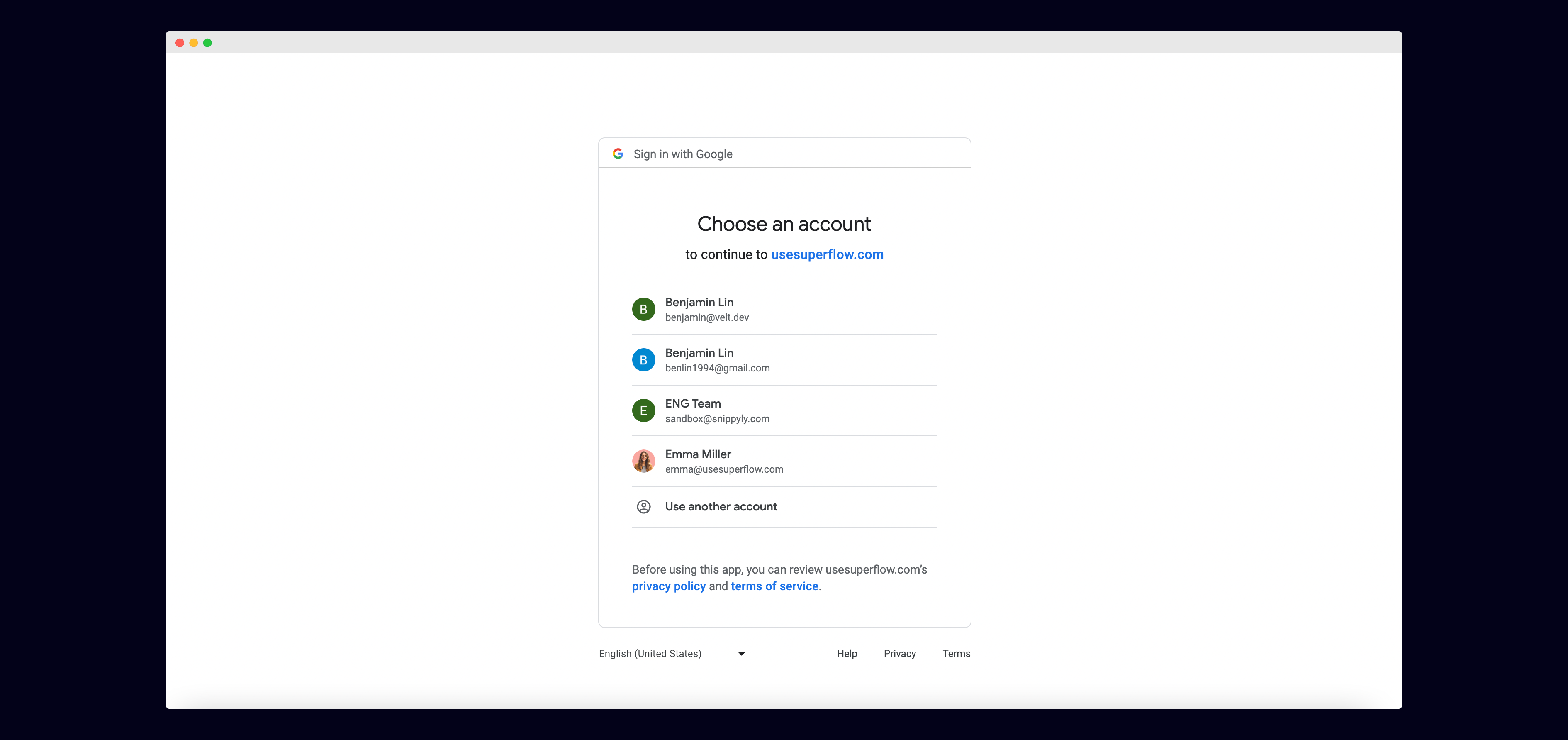
You will be asked to authenticate with the email associated with your Google Tag Manager account.
## 3) Authenticate with your Google Tag Manager account
You will be asked to authenticate with the email associated with your Google Tag Manager account.
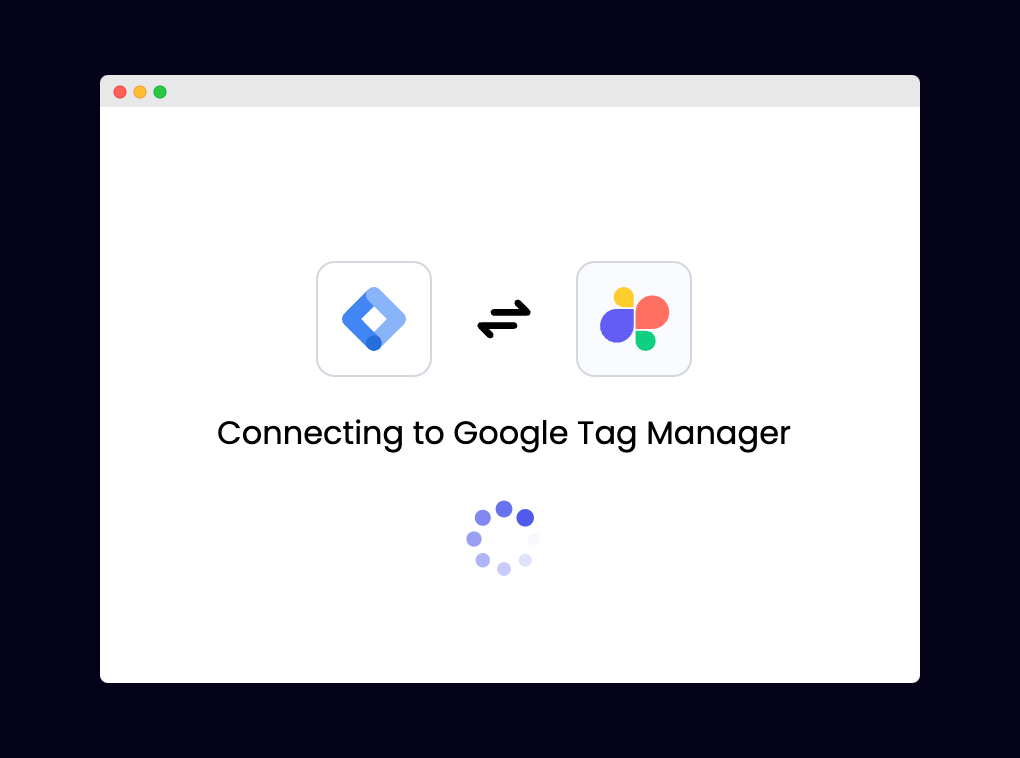
 Once you choose your email, you should see this loading screen.
 ## 4) Choose the Account and Tag Container from your Google Tag Manager account.
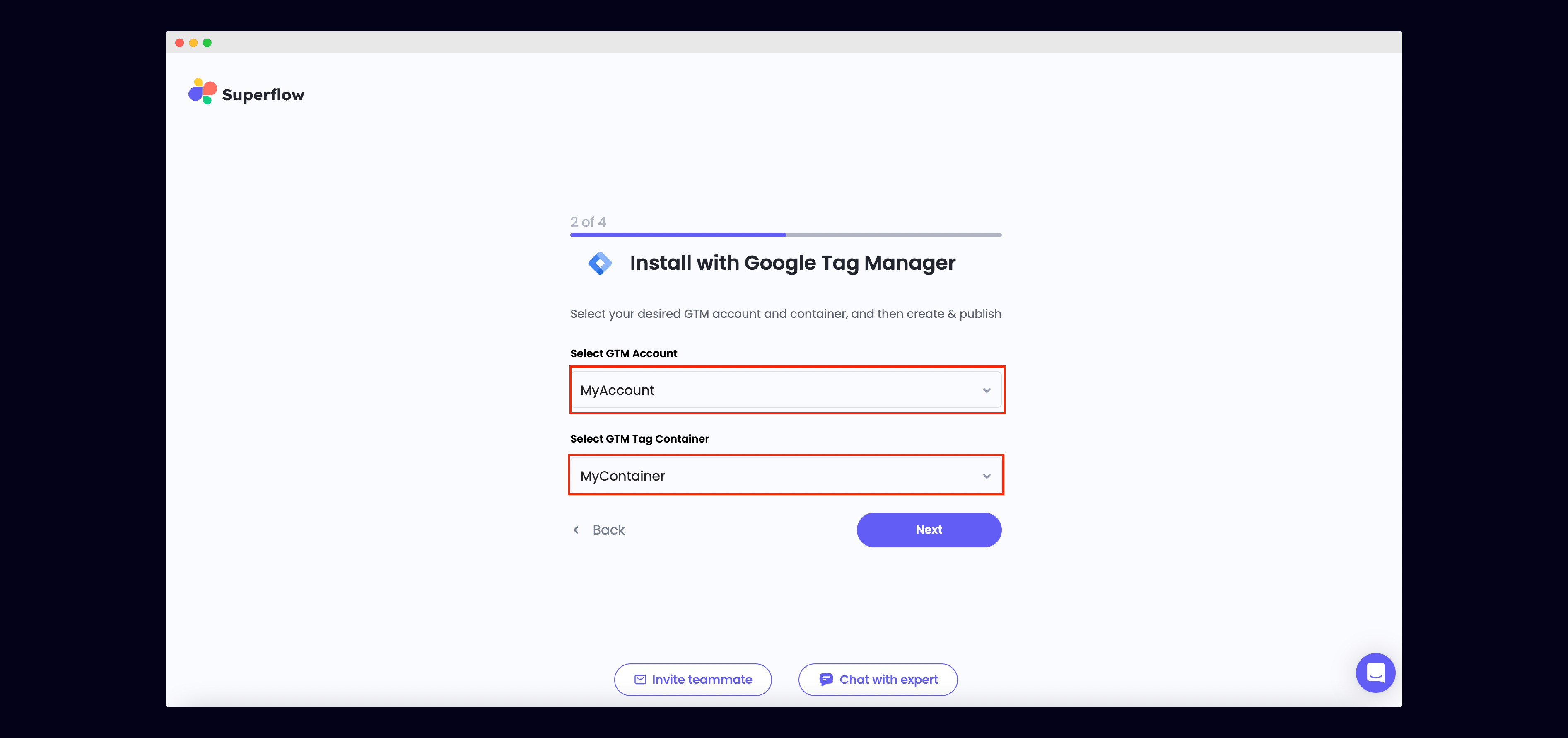
Choose the Google Tag Manager Account and Tag Container that you will be using to install Superflow within.
## 4) Choose the Account and Tag Container from your Google Tag Manager account.
Choose the Google Tag Manager Account and Tag Container that you will be using to install Superflow within.
 ## 5) Create and Publish Tag
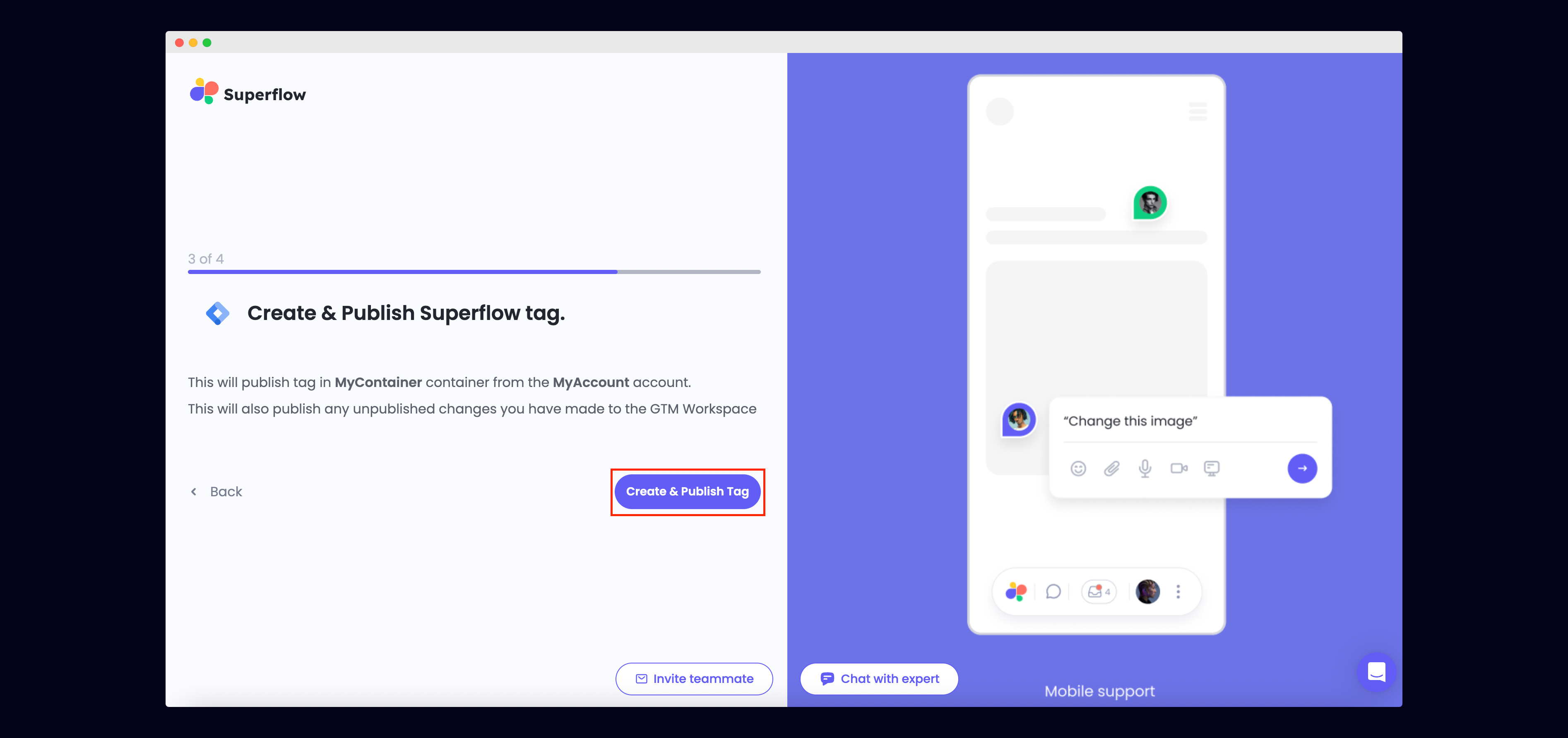
We will now create and publish a tag on your Google Tag Manager Account and Tag Container.
Click on Create and Publish Tag to authorize this.
This will also publish any unpublished changes you have on your GTM workspace
## 5) Create and Publish Tag
We will now create and publish a tag on your Google Tag Manager Account and Tag Container.
Click on Create and Publish Tag to authorize this.
This will also publish any unpublished changes you have on your GTM workspace
 ## 6) Verify your Installation
Verify your Superflow installation by clicking the Verify button on the onboarding flow.
## 6) Verify your Installation
Verify your Superflow installation by clicking the Verify button on the onboarding flow.
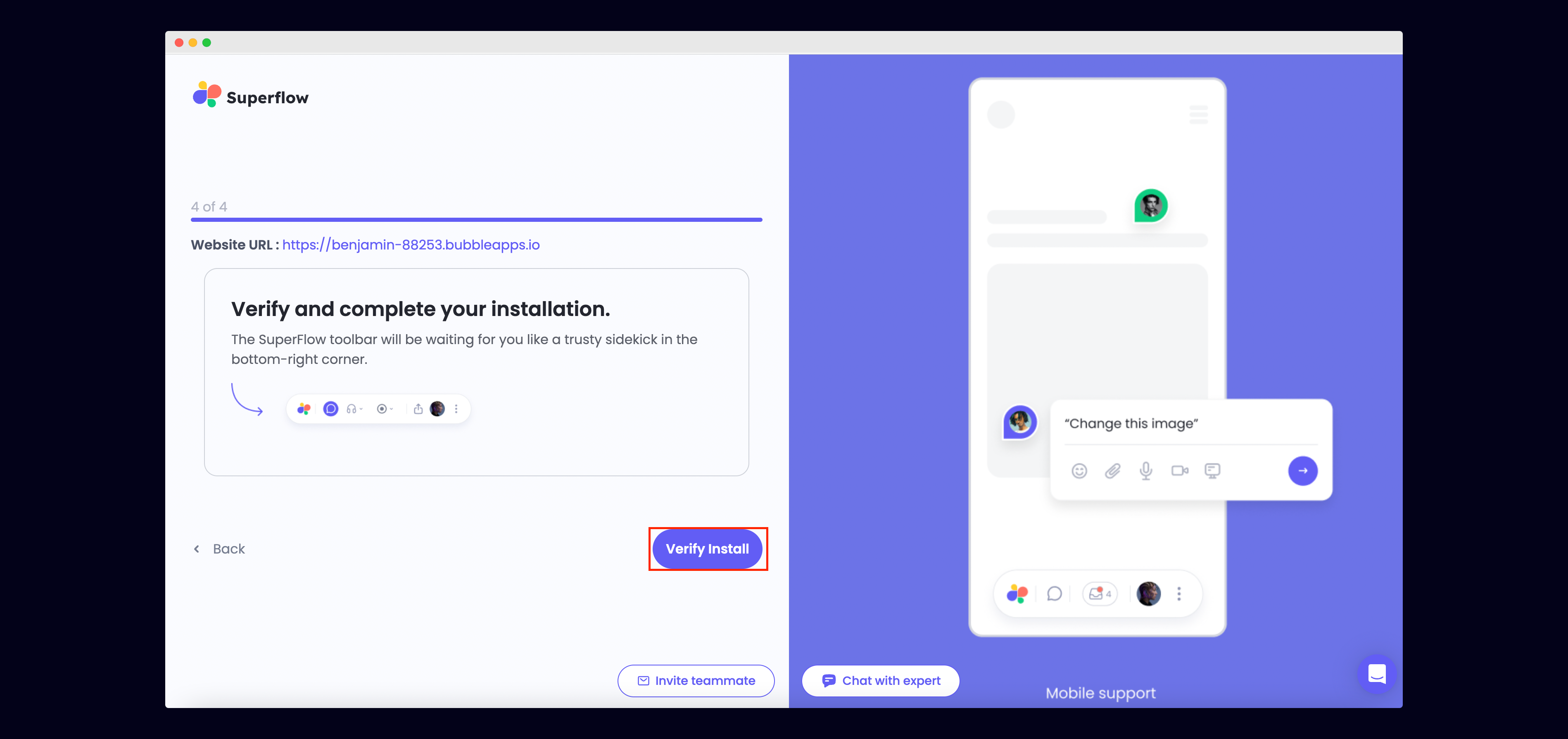 If successful, you should be redirected to your published site and see the following success message:
 ## 7) Troubleshooting
Having trouble getting your verifying your installation? Here are the common mistakes users encounter when installing Superflow:
* Did you forget to save the Custom Code?
* Did you forget to publish your site?
* Is the browser still loading a cached version?
* Did you add `?review=true` at the end of your url?
* Did you publish your changes on a staging URL while you are trying to access a Prod URL?
* Did you accidentally install multiple Superflow scripts in the Custom Code?
## 8) Navigate to your site
Now that you have verified that Superflow has been installed on your site, navigate to your published site and add `?review=true` at the end of the URL to enable Superflow.
`Example: mywebsite.yoursite.com/?review=true`
## 9) Test out Superflow
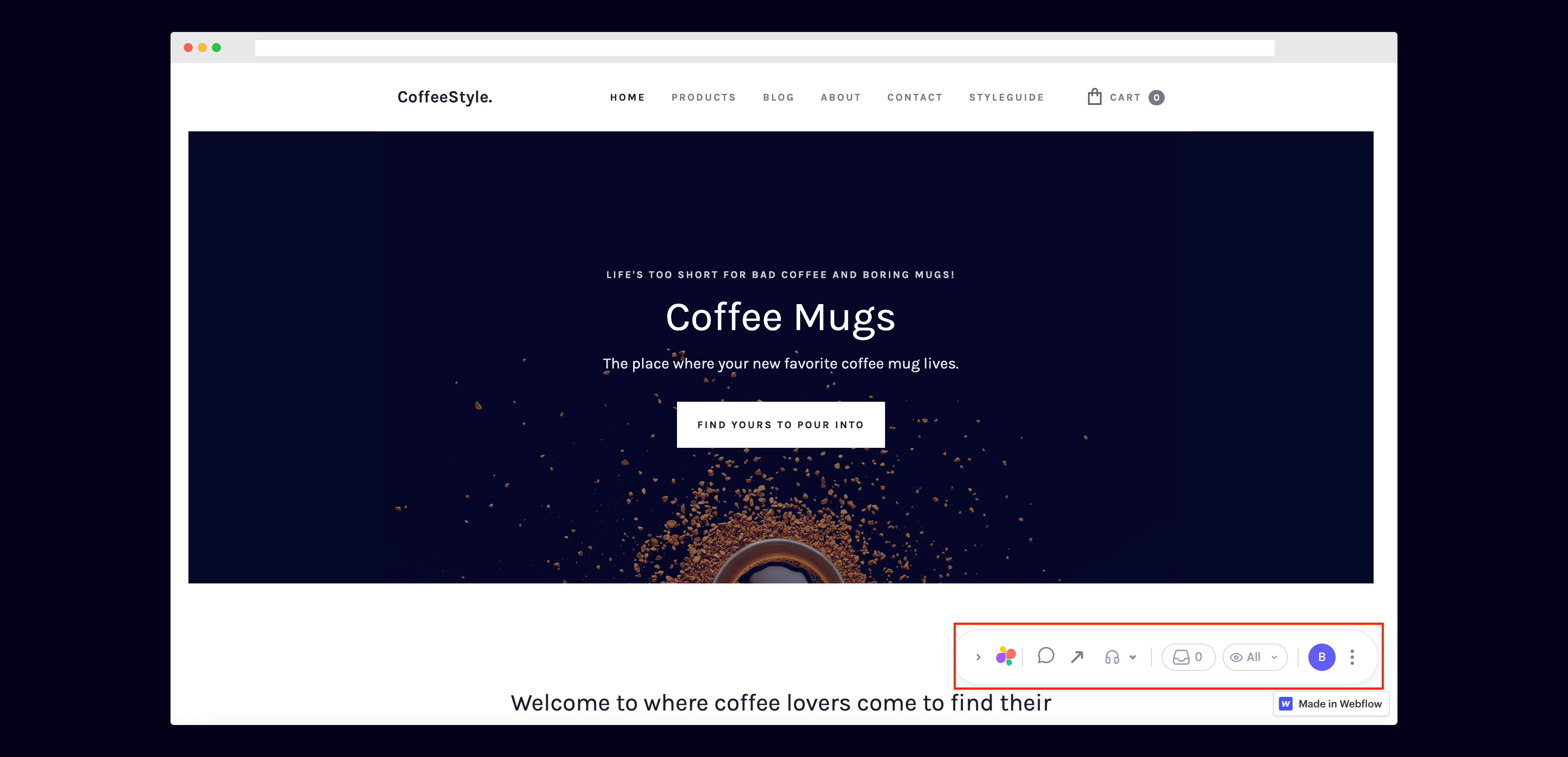
You should now see a Superflow toolbar on the bottom right of you screen.
## 7) Troubleshooting
Having trouble getting your verifying your installation? Here are the common mistakes users encounter when installing Superflow:
* Did you forget to save the Custom Code?
* Did you forget to publish your site?
* Is the browser still loading a cached version?
* Did you add `?review=true` at the end of your url?
* Did you publish your changes on a staging URL while you are trying to access a Prod URL?
* Did you accidentally install multiple Superflow scripts in the Custom Code?
## 8) Navigate to your site
Now that you have verified that Superflow has been installed on your site, navigate to your published site and add `?review=true` at the end of the URL to enable Superflow.
`Example: mywebsite.yoursite.com/?review=true`
## 9) Test out Superflow
You should now see a Superflow toolbar on the bottom right of you screen.
 ## 10) Dropping your first comment
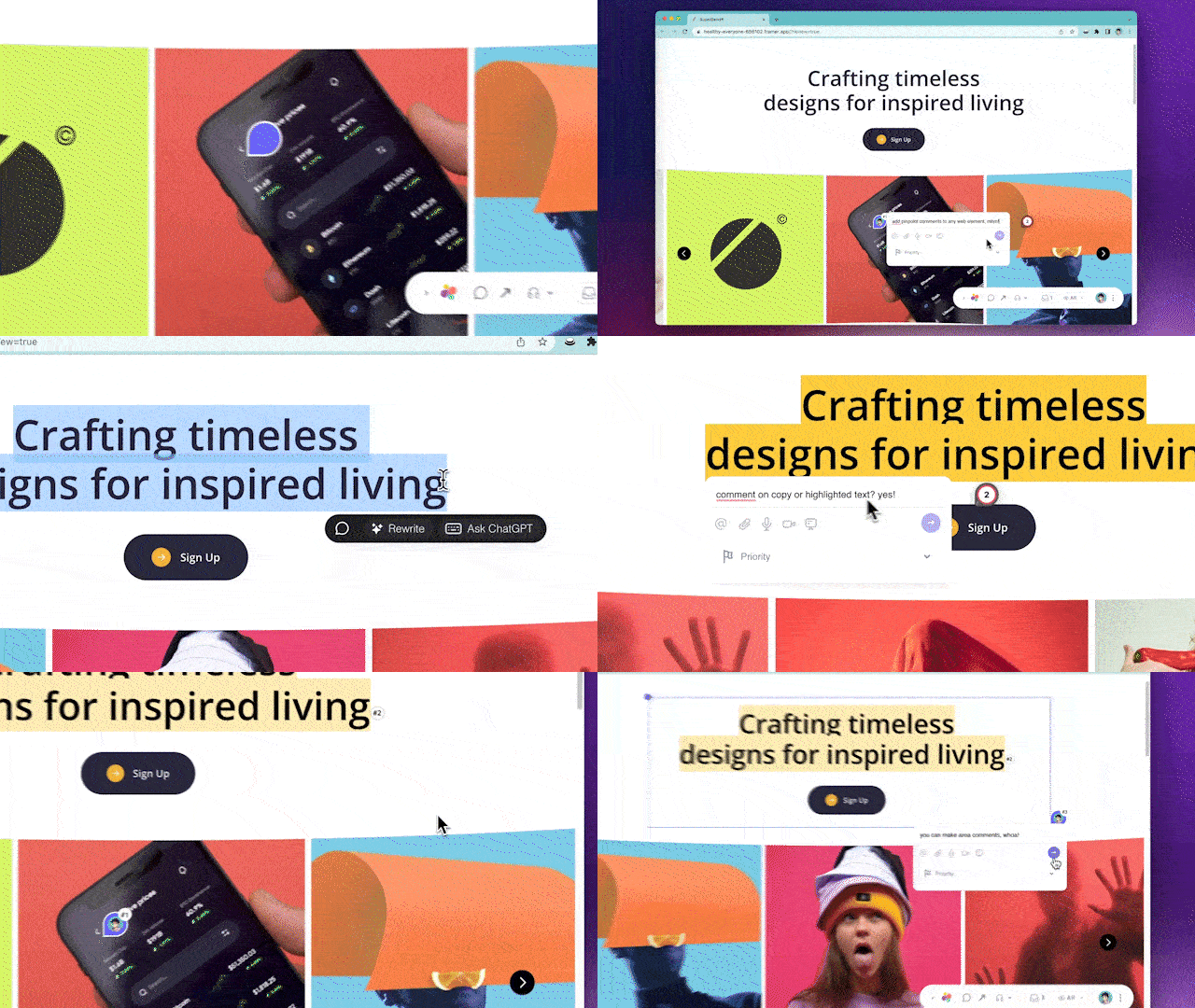
Try leaving a comment on your page.
You can leave a comment in several different ways:
* By highlighting any text
* By hovering over any element on the page
* By drawing a box anywhere on the page
You can also leave voice and screen recordings in your comments as well!
## 10) Dropping your first comment
Try leaving a comment on your page.
You can leave a comment in several different ways:
* By highlighting any text
* By hovering over any element on the page
* By drawing a box anywhere on the page
You can also leave voice and screen recordings in your comments as well!