> ## Documentation Index
> Fetch the complete documentation index at: https://docs.usesuperflow.com/llms.txt
> Use this file to discover all available pages before exploring further.
# How to start a huddle
## How to Start a Huddle
In this article, you will learn how to start a Huddle. This feature enables you to conduct a huddle within the Superflow Toolbar. At present, there are three(3) available huddle types; (a) Audio, (b) Video, and (c) Screen Huddle.
1. Find the **Superflow Toolbar** and click the **Huddle** icon.
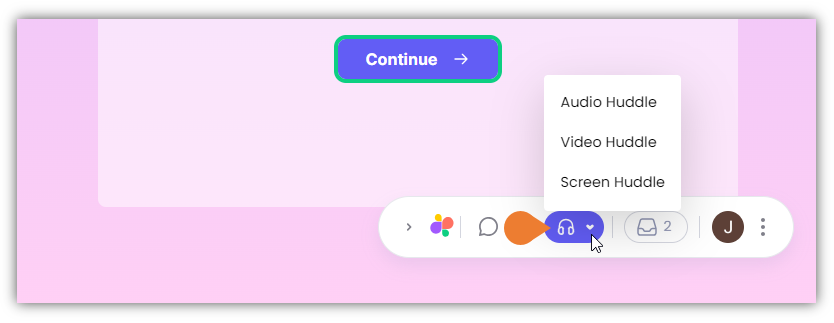 2. The **Huddle** menu expands, select your preferred huddle type:
* Audio Huddle
* Video Huddle
* Screen Huddle
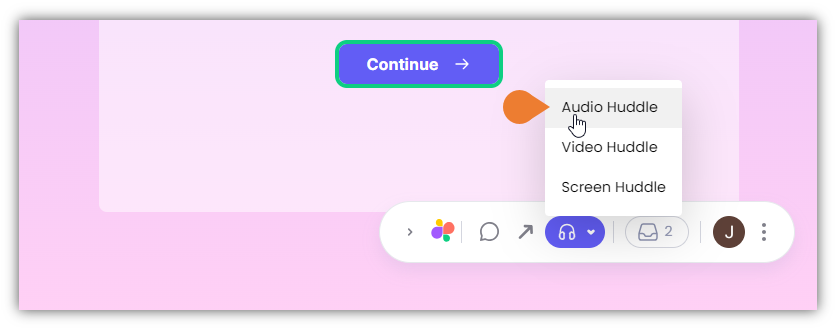
3. In this example, we will use the **Audio Huddle** feature.
2. The **Huddle** menu expands, select your preferred huddle type:
* Audio Huddle
* Video Huddle
* Screen Huddle
3. In this example, we will use the **Audio Huddle** feature.
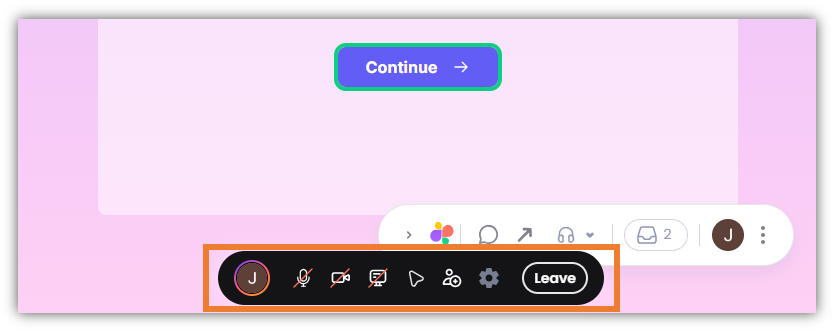
 4. After selecting the huddle type, the **Huddle Toolbar** will appear. You can do the following:
* Share your Screen
* Enable your cursor
* Invite Users to your Huddle
* Leave Huddle
4. After selecting the huddle type, the **Huddle Toolbar** will appear. You can do the following:
* Share your Screen
* Enable your cursor
* Invite Users to your Huddle
* Leave Huddle