> ## Documentation Index
> Fetch the complete documentation index at: https://docs.usesuperflow.com/llms.txt
> Use this file to discover all available pages before exploring further.
# How to record voice notes
## How to Record Voice Notes
In this article, you will learn how to record voice notes using the Superflow Toolbar.
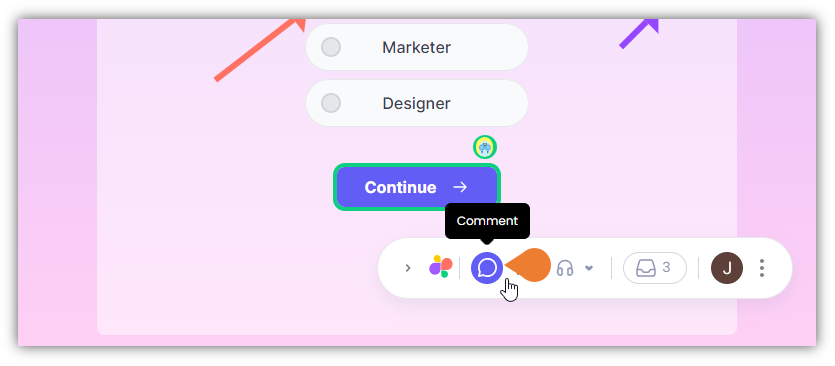
1. Find the **Superflow Toolbar** and click the **Comment** icon.
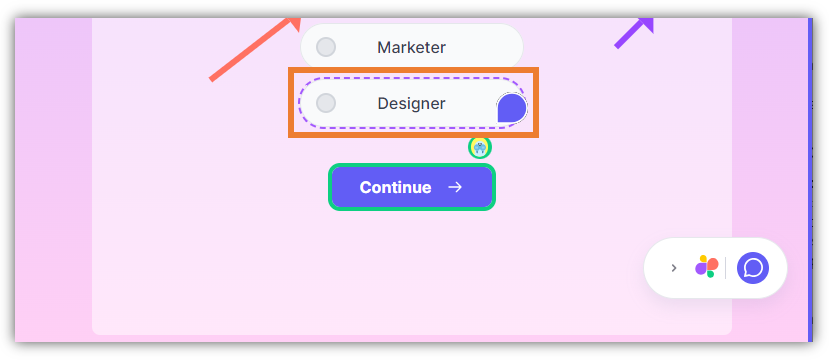
 2. After clicking the icon, click the **Element** you want to comment on.
> **Note**: when you hover your cursor on an element, it will appear as a **Comment** icon which signifies that you selected the comment feature.
2. After clicking the icon, click the **Element** you want to comment on.
> **Note**: when you hover your cursor on an element, it will appear as a **Comment** icon which signifies that you selected the comment feature.
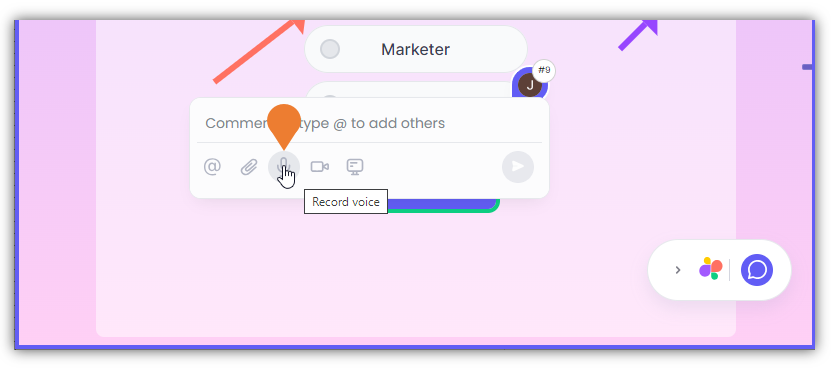
 3. The **Comment Box** will appear, click the **Microphone** icon to select.
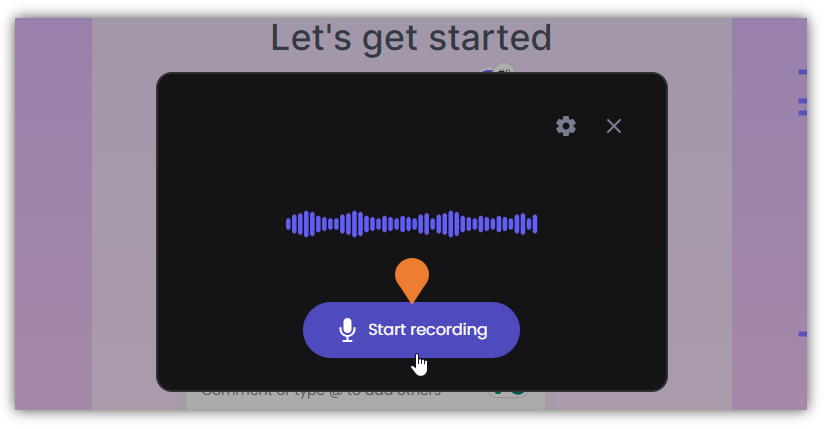
 4. A **Recording** window will appear. Click the **Start Recording** button to begin recording the voice note.
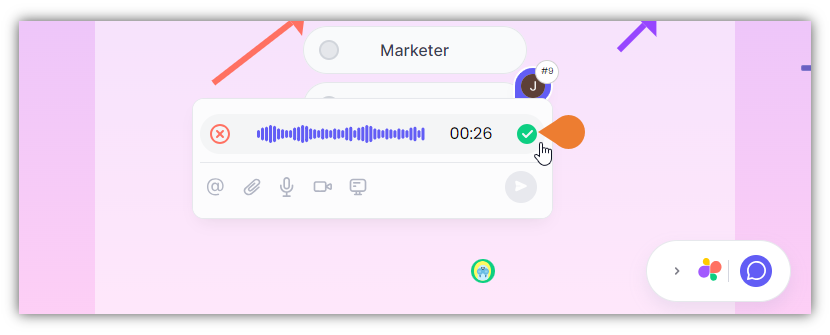
 5. To complete your recording, click the **Green Check Mark**. This will stop the current recording.
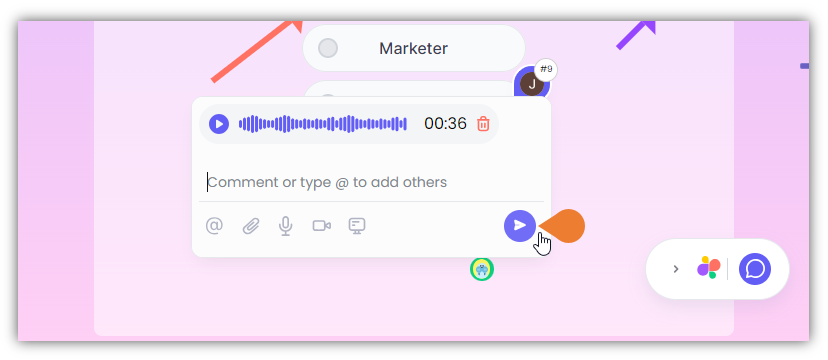
 6. Click the **Post** button to save the voice note.