> ## Documentation Index
> Fetch the complete documentation index at: https://docs.usesuperflow.com/llms.txt
> Use this file to discover all available pages before exploring further.
# How to record screen and add it to comments
## How to Record Screen and Add it to Comments
In this article, you will learn how to record your screen and add it to comments. This feature comes in handy when you need to record your screen without using another app and do more steps to record and add it to a comment.
1. Find the **Superflow Toolbar** and click the **Comment** icon.
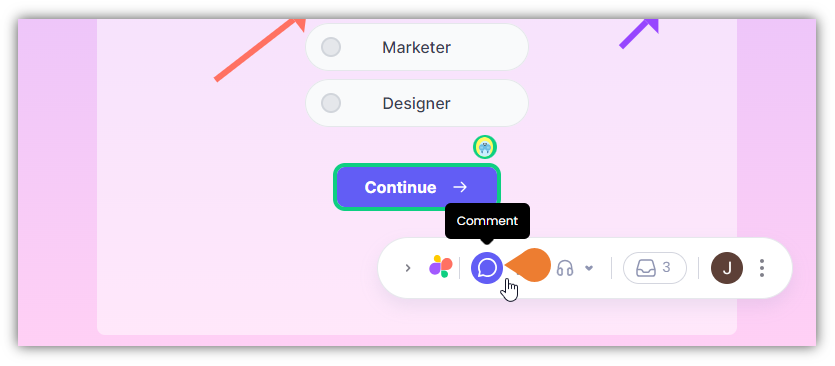 2. After clicking the icon, click the **Element** you want to comment on,
> **Note**: when you hover your cursor on an element, it will appear as a **Comment** icon which signifies that you selected the comment feature.
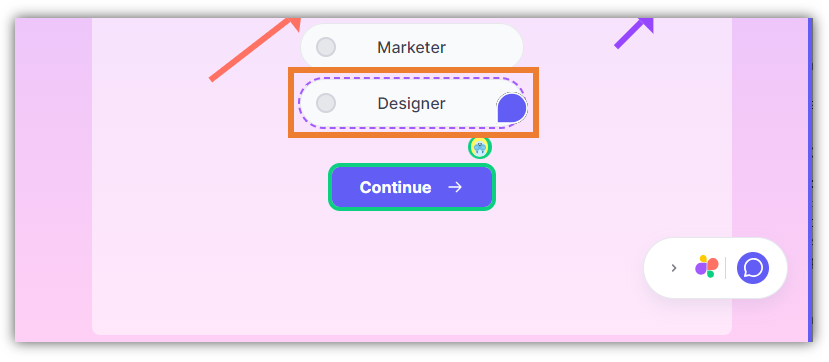
2. After clicking the icon, click the **Element** you want to comment on,
> **Note**: when you hover your cursor on an element, it will appear as a **Comment** icon which signifies that you selected the comment feature.
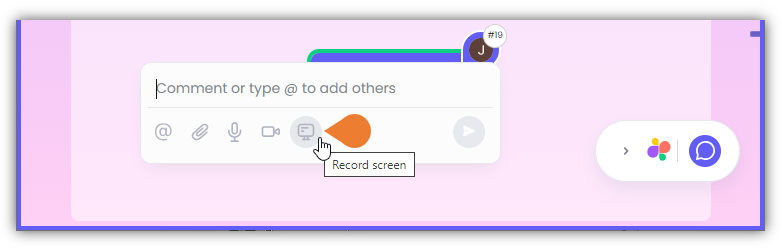
 3. The **Comment Box** will appear, click the **Screen Recorder** icon to select it.
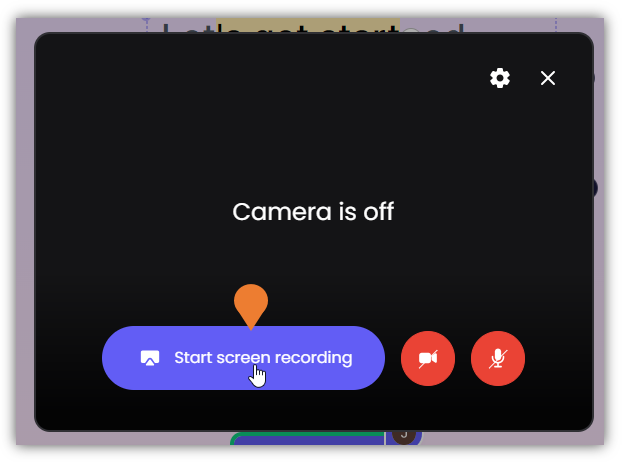
 4. A **Recording** window will appear. Click the **Start screen recording** button to begin screen recording.
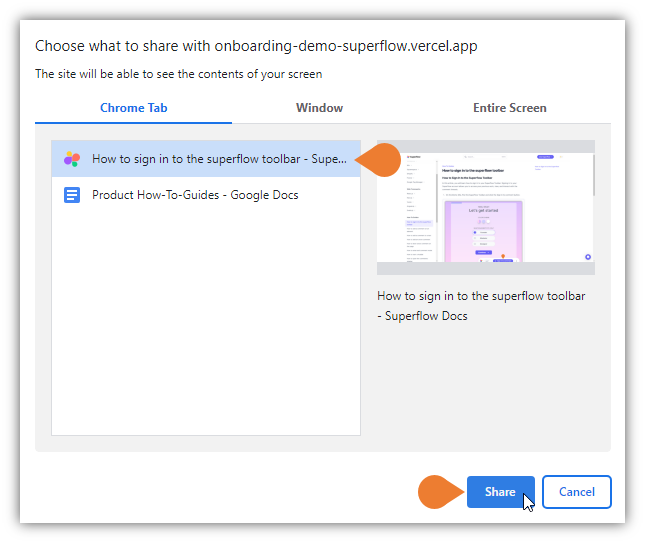
 5. A new window will appear, find and click the window/screen that you want to record and click **Share**.
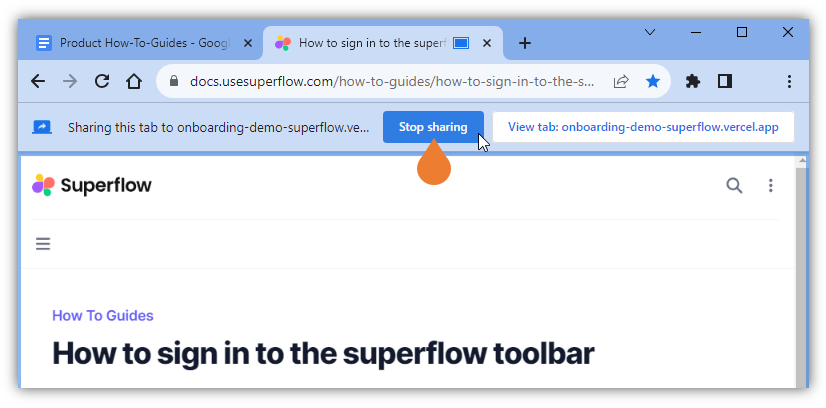
 6. To complete your recording, click the **Stop sharing** button to stop the current recording.
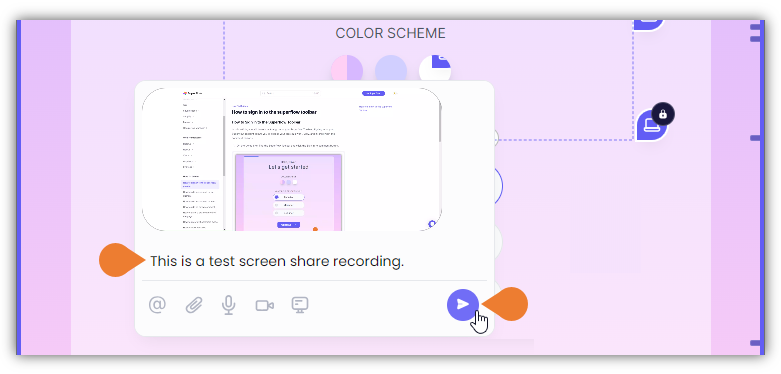
 7. You can add a comment or note in the **Comment** field and click the **Post** icon to save the screen-recorded comment.