> ## Documentation Index
> Fetch the complete documentation index at: https://docs.usesuperflow.com/llms.txt
> Use this file to discover all available pages before exploring further.
# How to filter comments in the sidebar
## How to Filter Comments in the Sidebar
In this article, you will learn how to use the Filter option under the Comments Sidebar feature. This option lets you filter comments based on pages, people, category, priority, and group.
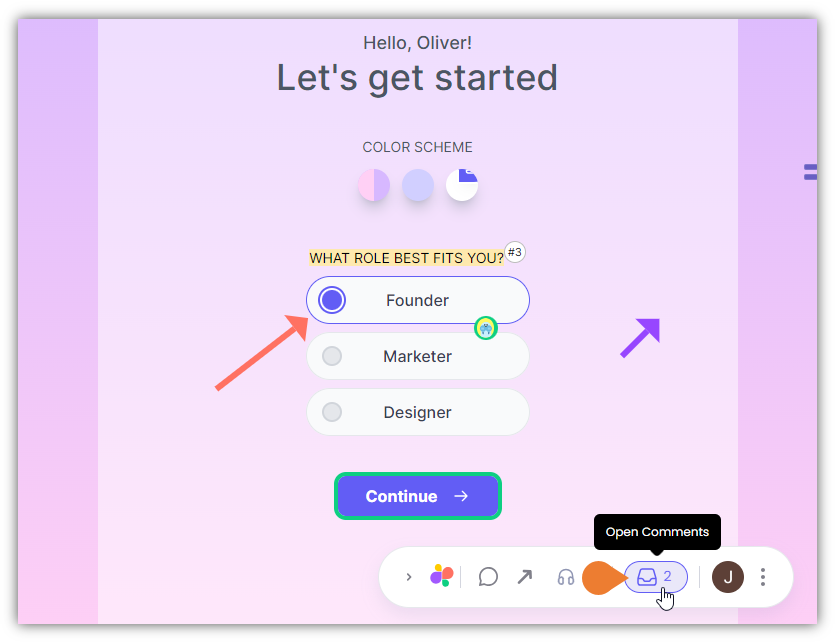
1. Find the **Superflow Toolbar** and click the **Open Comments** icon.
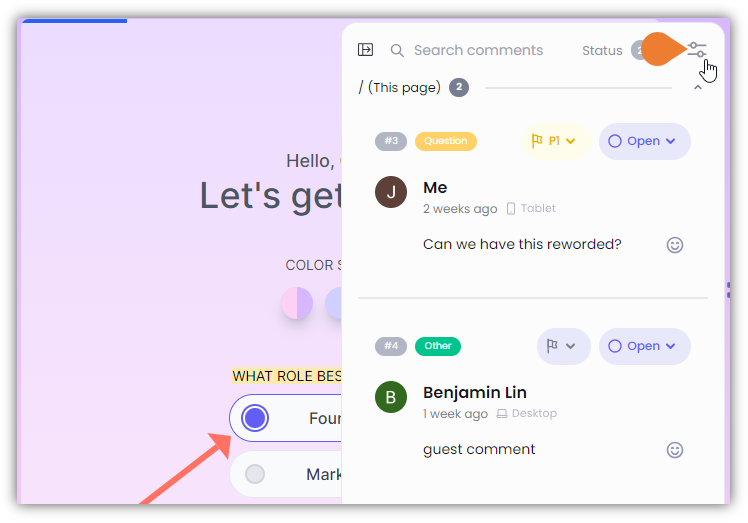
 2. The **Comments Sidebar** opens, click the **Filter** icon to expand the filter options.
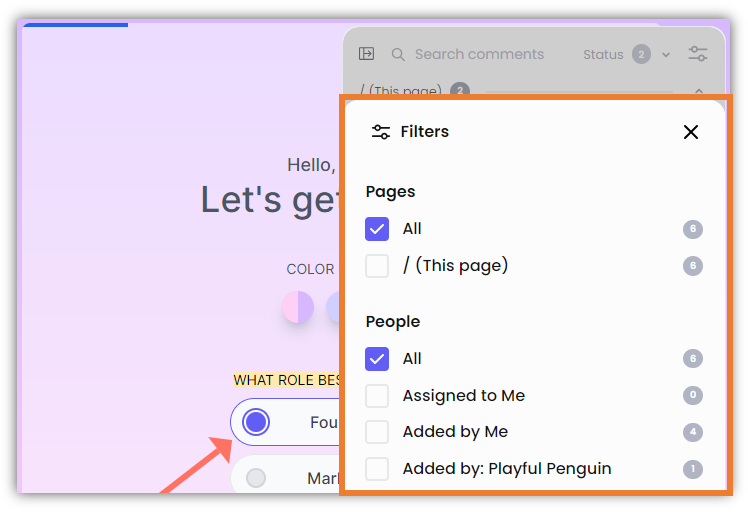
 3. The **Filters** section will appear, you can filter the comment by selecting the appropriate checkbox:
* Pages
* People
* Category
* Priority
* Group By
3. The **Filters** section will appear, you can filter the comment by selecting the appropriate checkbox:
* Pages
* People
* Category
* Priority
* Group By