> ## Documentation Index
> Fetch the complete documentation index at: https://docs.usesuperflow.com/llms.txt
> Use this file to discover all available pages before exploring further.
# How to add an arrow comment
## How to Add an Arrow Comment
In this article, you will learn how to add an arrow comment using the Superflow Toolbar.
1. Find the **Superflow Toolbar** and click the **Arrows** icon.
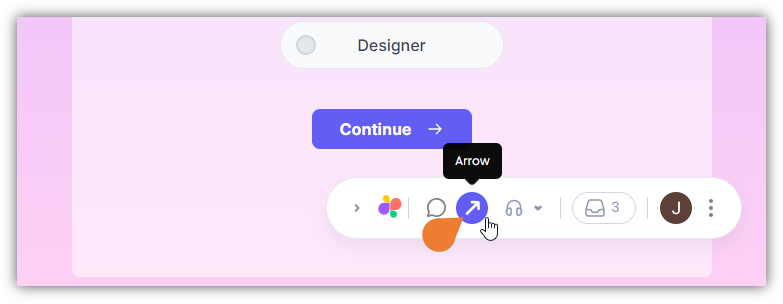 2. Click the **Element** or **Text** where you want to point the arrow.
 3. The **Arrow** will appear on the selected area. You can move the arrow by clicking and dragging the arrow itself.
 4. You can adjust the arrow size by clicking the end point of the arrow and dragging it to achieve the preferred size.