> ## Documentation Index
> Fetch the complete documentation index at: https://docs.usesuperflow.com/llms.txt
> Use this file to discover all available pages before exploring further.
# How to add a comment to a text
## How to Add a Comment to a Text
In this article, you will learn how to add comments to a text.
1. Highlight the **Text** you want to comment on using your cursor. After highlighting the text, click the **Comment** icon on the enabled **Toolbar**.
 2. The **Comment Box** will appear, enter your comment or type **@** to add other users.
> **Note**: the **Comment Box** lets you add users, attach files, and record audio, videos, and screens.
2. The **Comment Box** will appear, enter your comment or type **@** to add other users.
> **Note**: the **Comment Box** lets you add users, attach files, and record audio, videos, and screens.
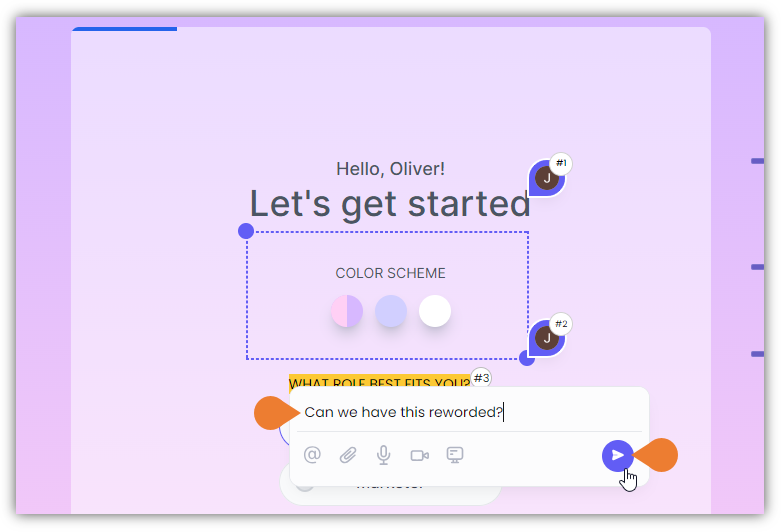 3. Click the **Post** button to post your comment.