> ## Documentation Index
> Fetch the complete documentation index at: https://docs.usesuperflow.com/llms.txt
> Use this file to discover all available pages before exploring further.
# How to invite commenters
## How to Invite Commenters
In this article, you will learn how to invite commenters to your project. The commenter user type will let you comment on the to projects which you were invited.
As a commenter, your account’s functionality and access to features is limited compared to the Admin level credentials.
Access the Superflow Dashboard by going to [app.usesuperflow.com](app.usesuperflow.com). Alternatively, when you are in Review Mode, you can use the method below:
1. Find the **Superflow Toolbar** and click the **More Options** icon.
 2. A sub-menu will expand, click the **View Project** option to select.
3. A new tab will direct you to the **Project Dashboard** page.
> **Note**: By default, you will be directed to the Dashboard for Comment Status screen when accessing the **Project Dashboard**.
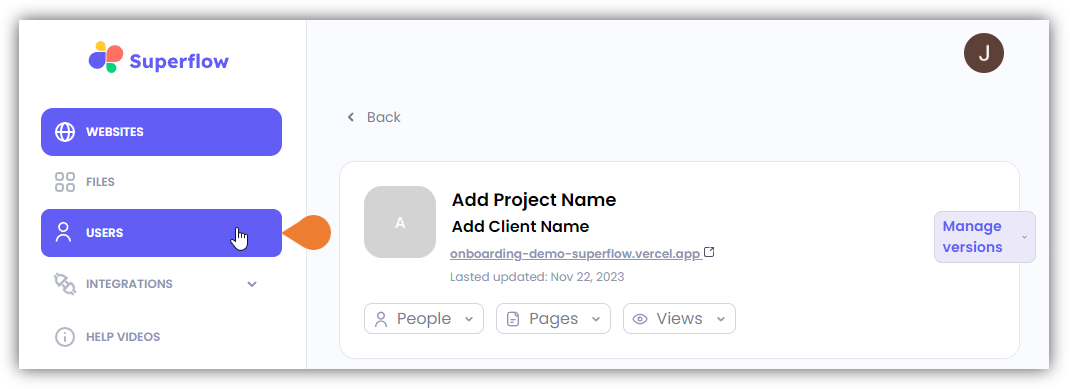
4. Click the **USERS** module to access the **Users** page.
2. A sub-menu will expand, click the **View Project** option to select.
3. A new tab will direct you to the **Project Dashboard** page.
> **Note**: By default, you will be directed to the Dashboard for Comment Status screen when accessing the **Project Dashboard**.
4. Click the **USERS** module to access the **Users** page.
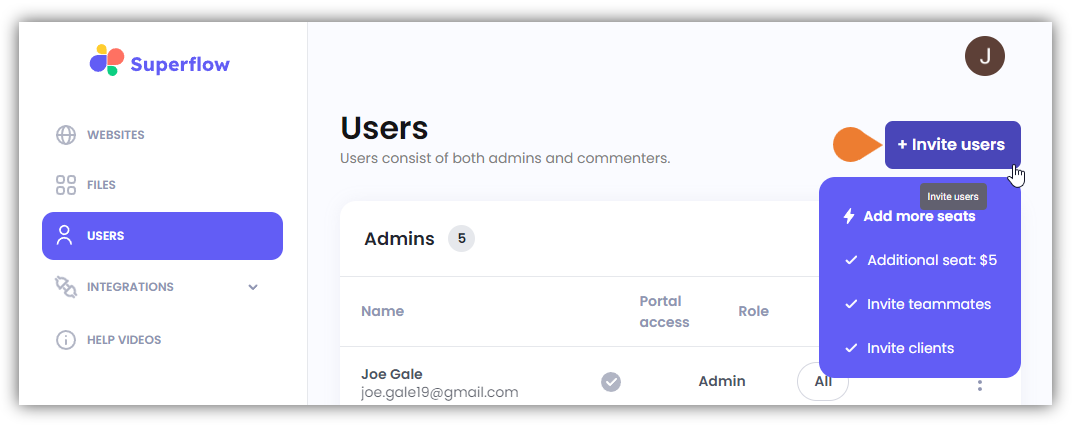
 5. Find and click the **+ Invite Users** button.
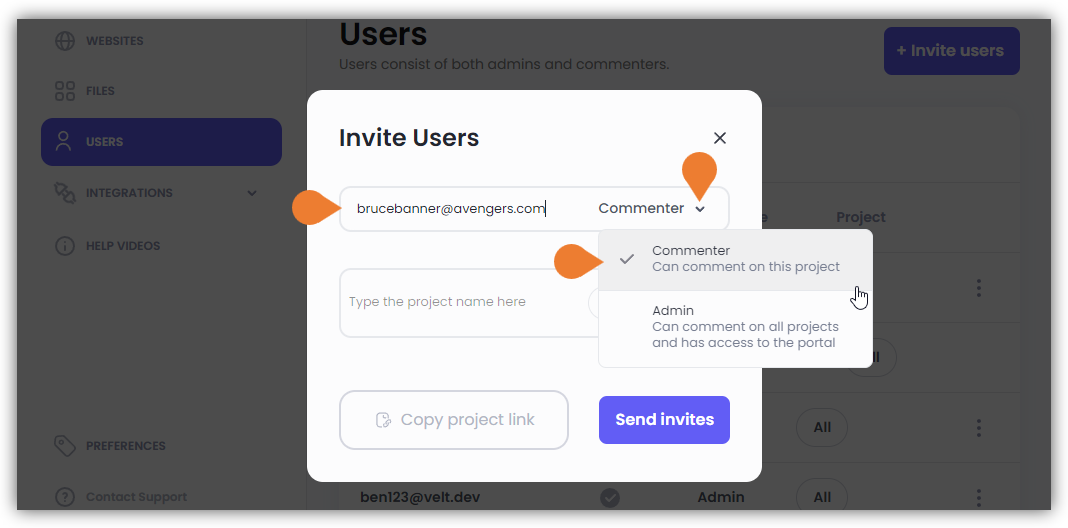
 6. The **Invite Users** dialog box will appear. In the **Email** field, enter the user’s email address.
7. Click the **Drop-Down** menu and select **Commenter**.
6. The **Invite Users** dialog box will appear. In the **Email** field, enter the user’s email address.
7. Click the **Drop-Down** menu and select **Commenter**.
 8. Additional fields will appear. In the **Project Name** field, enter the project name or use the drop-down arrow to select the project you want to invite the commenter.
> **Note**: you can use the project link using the Copy project link button and provide it to the commenter to access.
8. Additional fields will appear. In the **Project Name** field, enter the project name or use the drop-down arrow to select the project you want to invite the commenter.
> **Note**: you can use the project link using the Copy project link button and provide it to the commenter to access.
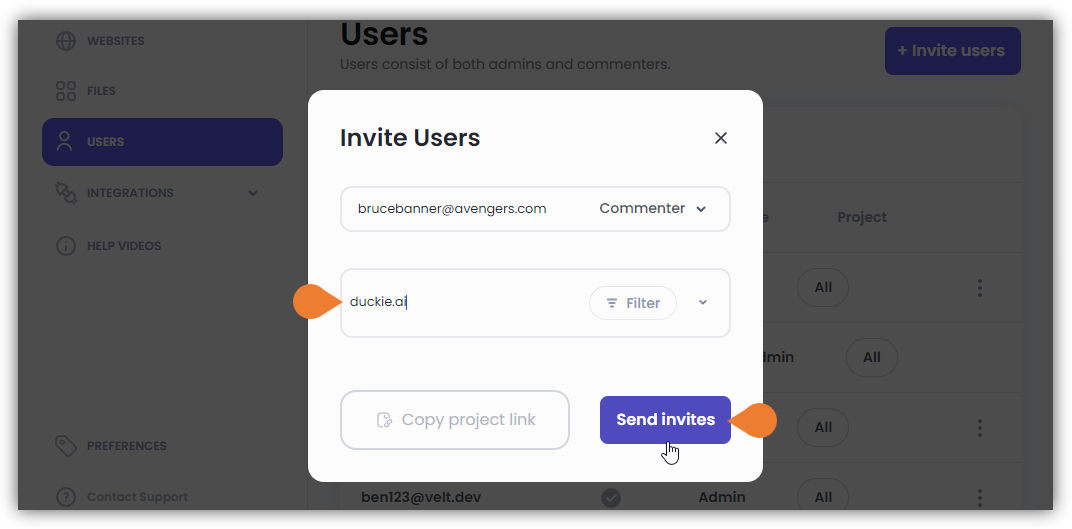 9. After entering and defining the required credentials, click the **Send invites** button.