> ## Documentation Index
> Fetch the complete documentation index at: https://docs.usesuperflow.com/llms.txt
> Use this file to discover all available pages before exploring further.
# How to access project settings
## How to Access the Project Settings
In this article, you will learn how to access the project settings. The Project Settings enable you to specify more project details, manage permissions, define project configuration, migrate Superflow data to another URL, access unique code, and view usage.
Access the Superflow Dashboard by going to [app.usesuperflow.com](app.usesuperflow.com). Alternatively, when you are in Review Mode, you can use the method below:
1. Find the **Superflow Toolbar** and click the **More Options** icon.
 2. A sub-menu will expand, click the \***View Project** option to select.
3. A new tab will direct you to the **Project Dashboard** page.
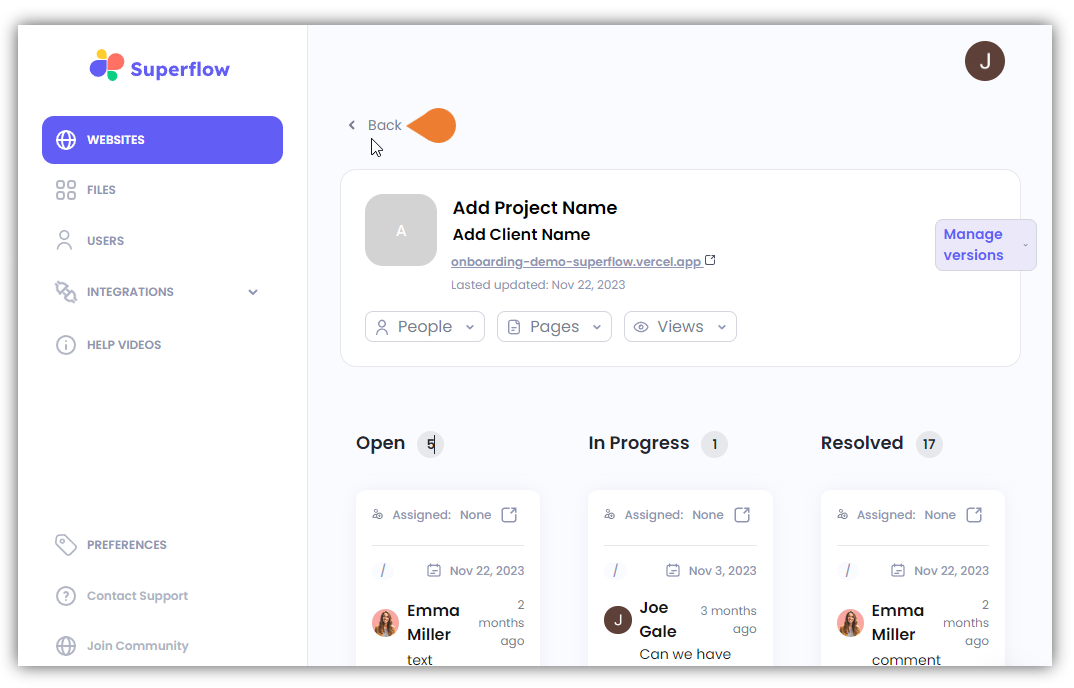
4. By default, when accessing the **Project Dashboard**, you will be directed to the **Dashboard for Comments Status** screen or the Kanban Board. To access the Projects list, click the **\< Back** or the **WEBSITES** module.
2. A sub-menu will expand, click the \***View Project** option to select.
3. A new tab will direct you to the **Project Dashboard** page.
4. By default, when accessing the **Project Dashboard**, you will be directed to the **Dashboard for Comments Status** screen or the Kanban Board. To access the Projects list, click the **\< Back** or the **WEBSITES** module.
 5. In the **All Projects** list, find the project you want to view and click its **More Options** icon.
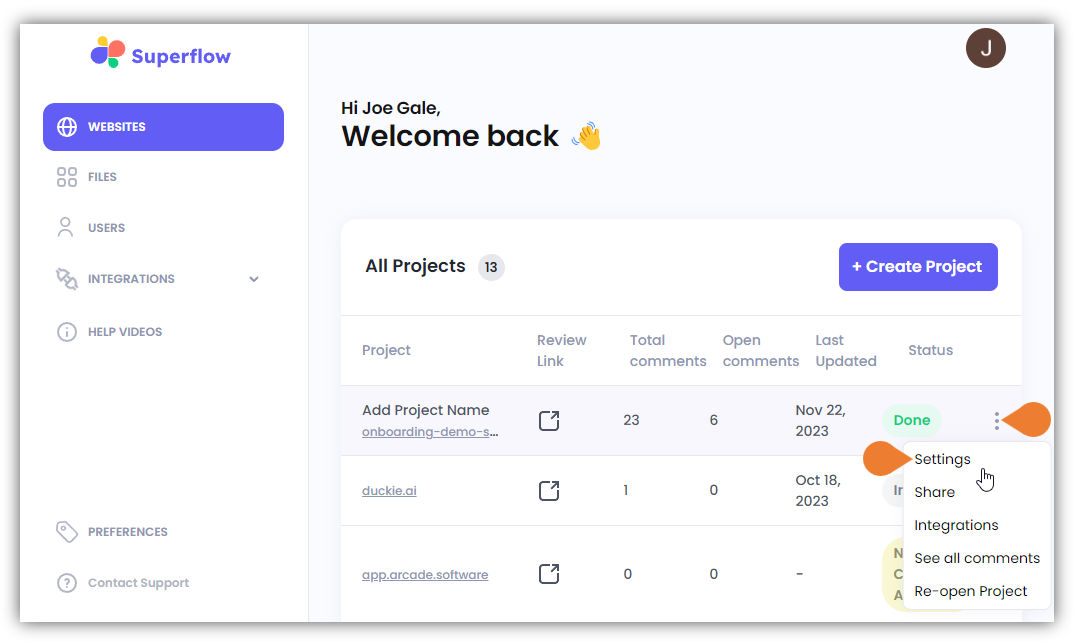 6. A sub-menu will expand, click **Settings** to select.
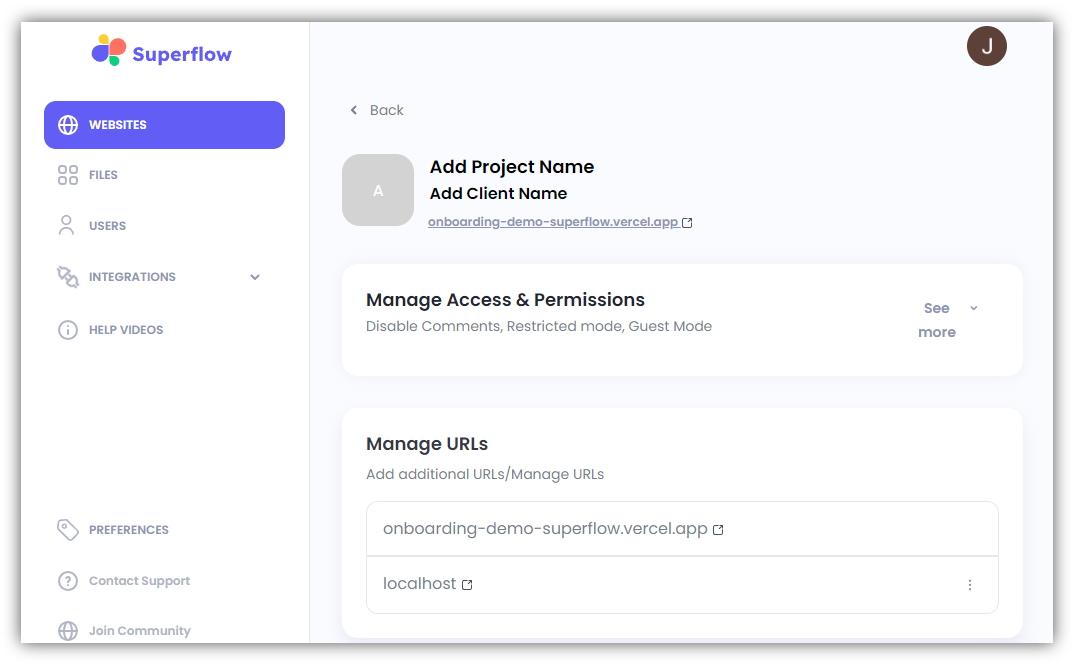
7. The **Project Settings** enable you to do the following:
* Add/Update Project Name
* Add/Edit Client Name
* Manage Access & Permissions
* Manage URLs
* Access Unique Code
* Migrate Superflow Data to another URL
* View Usage
6. A sub-menu will expand, click **Settings** to select.
7. The **Project Settings** enable you to do the following:
* Add/Update Project Name
* Add/Edit Client Name
* Manage Access & Permissions
* Manage URLs
* Access Unique Code
* Migrate Superflow Data to another URL
* View Usage