> ## Documentation Index
> Fetch the complete documentation index at: https://docs.usesuperflow.com/llms.txt
> Use this file to discover all available pages before exploring further.
# How to integrate with monday
## How to Integrate with Monday
In this article, you will learn how to integrate Superflow with Monday.com.
Access the Superflow Dashboard by going to [app.usesuperflow.com](app.usesuperflow.com). Alternatively, when you are in Review Mode, you can use the method below:
1. Find the **Superflow Toolbar** and click the **More Options** icon.
 2. A sub-menu will expand, click the **View Project** option to select.
3. A new tab will direct you to the **Project Dashboard** page.
> **Note**: By default, you will be directed to the Dashboard for Comment Status screen when accessing the **Project Dashboard**.
4. Click the **INTEGRATIONS** module to access more integration options.
2. A sub-menu will expand, click the **View Project** option to select.
3. A new tab will direct you to the **Project Dashboard** page.
> **Note**: By default, you will be directed to the Dashboard for Comment Status screen when accessing the **Project Dashboard**.
4. Click the **INTEGRATIONS** module to access more integration options.
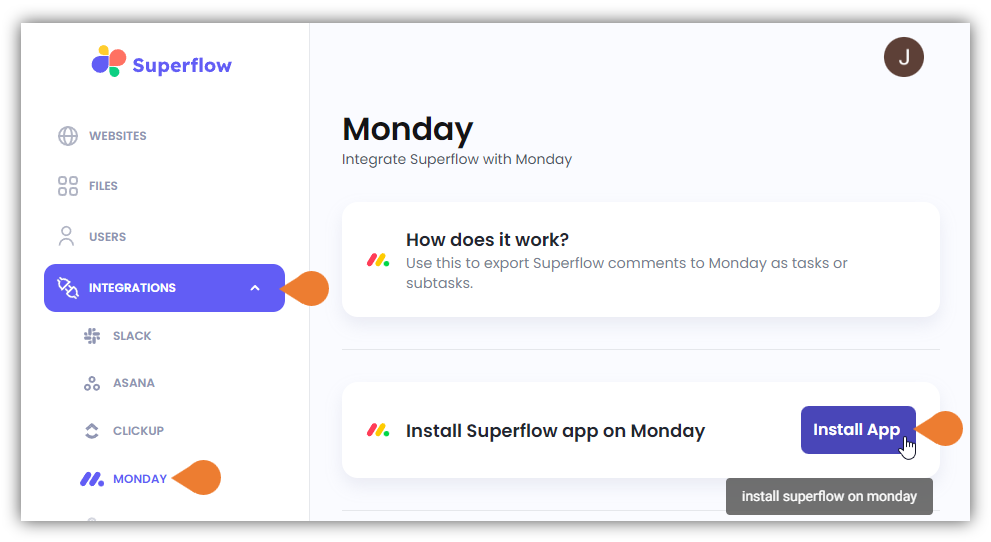 5. Select **MONDAY** to access Monday.com’s integration page. Click the **Install App** button to start the integration.
> **IMPORTANT NOTE**: This is a required step before you can connect to Superflow with Monday.com. Ensure that Superflow is installed on Monday.com before connecting your Superflow account.
6. You will be directed to Monday.com’s integration page. In the **Workspace** section, select the workspace to use or add a new one using the **+ Add Workspace** button.
5. Select **MONDAY** to access Monday.com’s integration page. Click the **Install App** button to start the integration.
> **IMPORTANT NOTE**: This is a required step before you can connect to Superflow with Monday.com. Ensure that Superflow is installed on Monday.com before connecting your Superflow account.
6. You will be directed to Monday.com’s integration page. In the **Workspace** section, select the workspace to use or add a new one using the **+ Add Workspace** button.
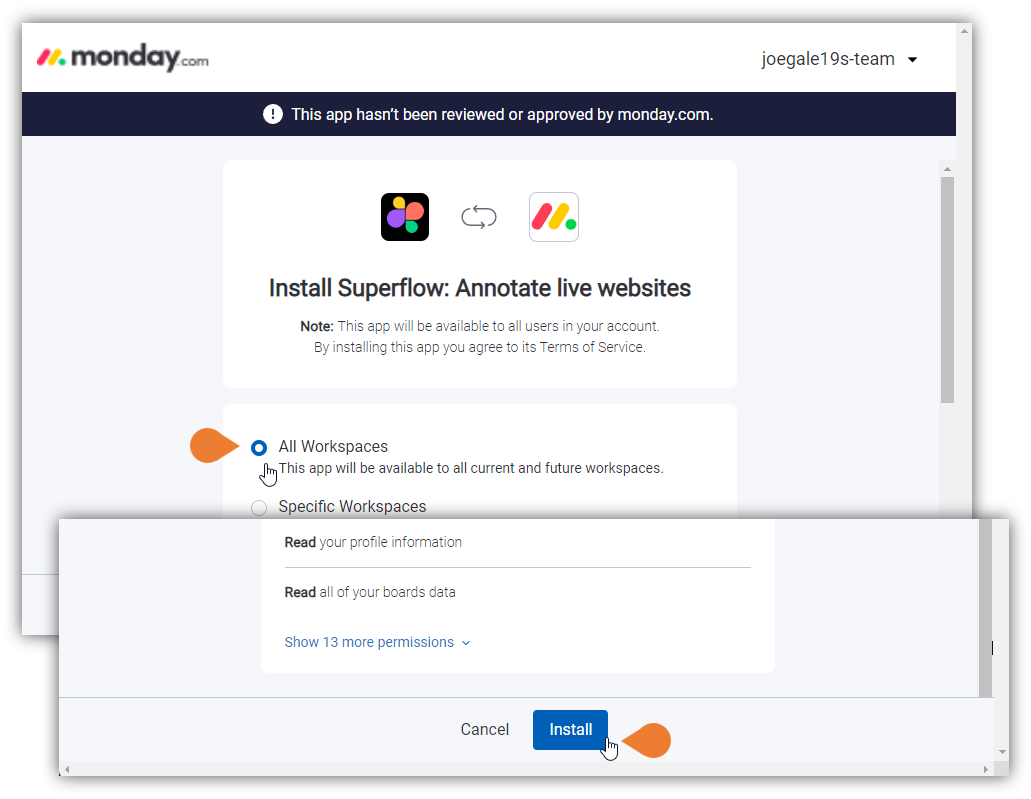 7. Click the **Install** button. Once Superflow is successfully installed, you will be directed to Monday.com’s **Manage Apps** page.
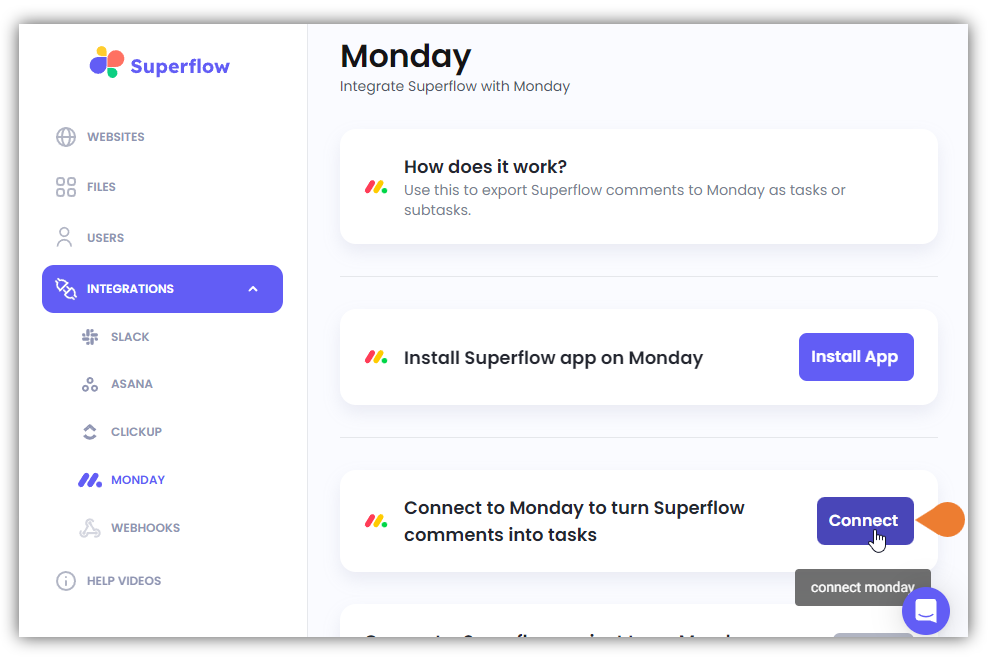
8. Go back to the **Integration** tab and click the **Connect** button.
7. Click the **Install** button. Once Superflow is successfully installed, you will be directed to Monday.com’s **Manage Apps** page.
8. Go back to the **Integration** tab and click the **Connect** button.
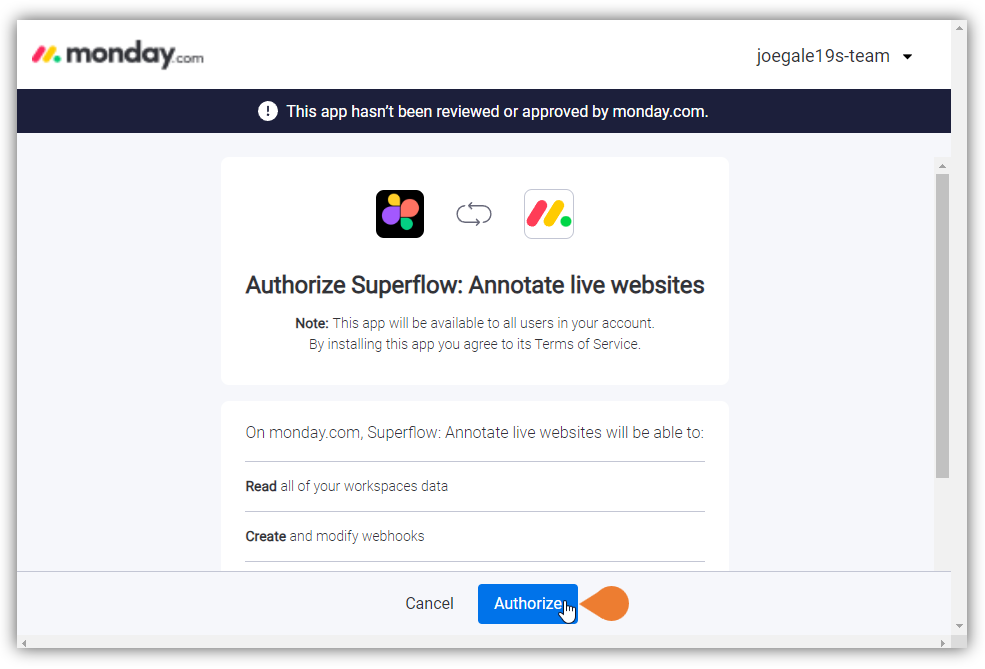
 9. Review the details and click the **Authorize** button.